Audio drivers

Fix crackling audio, missing sound devices, and microphone issues.

Audio & Display Windows 11, Windows 10 Reviewed Aug 18, 2026
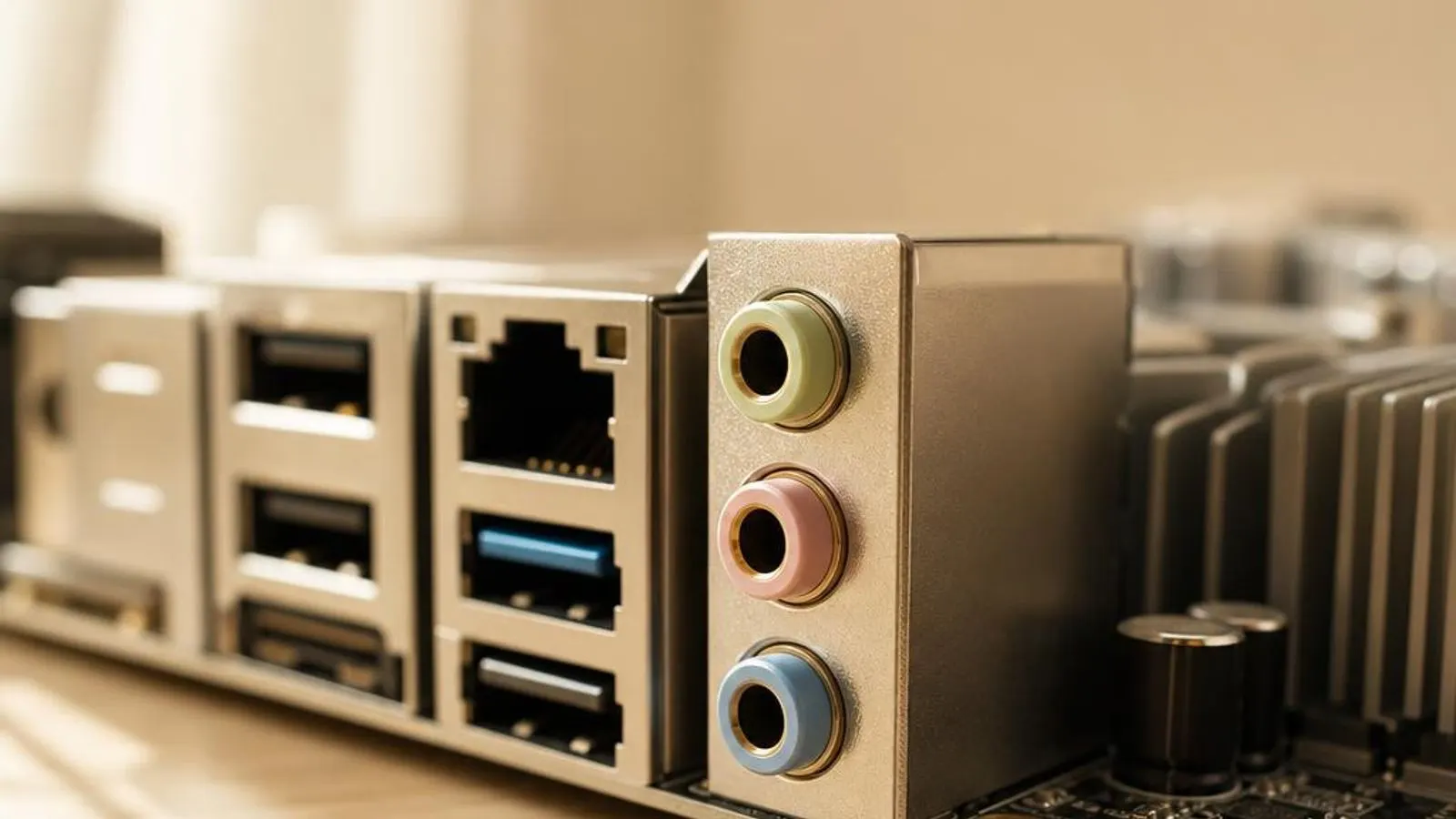
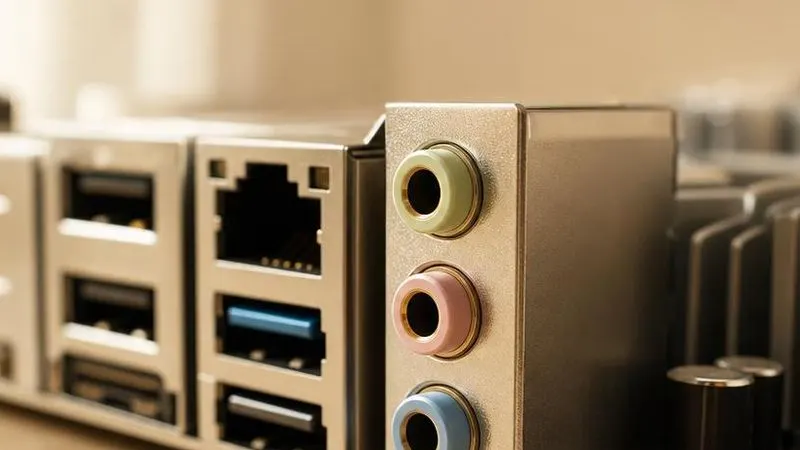
motherboard audio section shown with codec chip under EMI shield, gold 3.5mm jack stack (green, pink, blue), isolated audio trace channel

You might also need

Audio drivers we cover
What does a audio driver do?

The audio driver is the software that operates the High Definition Audio codec integrated into almost every PC motherboard. That codec is a small mixed-signal chip containing digital-to-analogue converters for playback and analogue-to-digital converters for the microphone input. The driver programmes the codec's registers over the HD Audio link, a dedicated bus between the motherboard's audio controller and the codec, and exposes the result to Windows as a set of playback and recording endpoints.

Inside Windows the driver plugs into the audio endpoint model. Each physical connector, the green headphone jack, the pink microphone jack, and any digital S/PDIF output, becomes an endpoint the operating system can route audio to independently. The Windows Audio Session API, WASAPI, and the audio engine sit above the driver, mixing every application's stream, applying volume, and converting sample rates before handing a single blended buffer down to the codec.

Read the full audio driver explainer

Why keeping it updated matters

An out-of-date audio driver is a common source of the crackling, popping, and dropout complaints that plague otherwise healthy PCs. Codec vendors ship fixes for buffer-underrun handling, power-state transitions, and jack-detection quirks inside routine driver updates, and a machine still running the build it shipped with often carries bugs that a current package has already resolved. Keeping the driver current is the cheapest fix for intermittent audio glitches.

Windows feature updates change the audio engine underneath the driver, and an old driver can fall out of step with a new endpoint model. That mismatch shows up as a missing output device after a major Windows upgrade, or as spatial-sound and communications-ducking features that simply refuse to work. Refreshing the driver realigns it with the operating system's current audio subsystem.

Common warning signs of audio driver failure

  • Audio crackles or pops intermittently as buffer underruns interrupt the sample stream to the codec's converters
  • Windows shows 'No audio output device is installed' and the sound icon carries a red cross after an update
  • The HD Audio device appears in Device Manager with a yellow triangle and reports a Code 10 start failure
  • Speakers keep playing after headphones are plugged in because the codec's jack-detection is not being read
  • The microphone input records only silence or a loud hum even though the recording endpoint is enabled
  • A brief click is heard whenever playback starts or stops as the codec transitions its power state

How to fix audio driver problems

1

Run the built-in audio troubleshooter

In Settings open System, then Sound, and select Troubleshoot common sound problems. The troubleshooter checks the default endpoint, the audio service, and disabled devices, and it resolves many missing-device and no-output faults without touching the driver at all.

2

Confirm the codec state in Device Manager

Expand Sound, video and game controllers and inspect the High Definition Audio device. A yellow triangle with Code 10 means the driver failed to start the codec; open Properties to read the status text before deciding between a reinstall and a rollback.

3

Reinstall the audio driver

Right-click the audio device, choose Uninstall device, and tick the box to remove the driver software so stale configuration is cleared. Reboot; Windows reloads the inbox HD Audio driver and then offers the vendor codec package through Windows Update.

4

Restart the Windows Audio service

Open the Services console, find Windows Audio and Windows Audio Endpoint Builder, and restart both. A hung audio service produces a missing default device that looks like a driver fault but is really the endpoint host having stalled.

See every step in detail

Error codes linked to this hardware

Helpful guides

Frequently asked questions

Why does my audio crackle and pop even though the volume is normal?

Crackle almost always comes from buffer underruns, where samples fail to reach the codec's digital-to-analogue converters in time and the stream briefly starves. The usual culprits are an audio enhancement effect, an exclusive-mode app monopolising the endpoint, or aggressive power management on the audio controller. Start by disabling enhancements in the Sound control panel, then clear exclusive control, and only reinstall the driver if the crackle survives those changes. A DPC latency spike from an unrelated driver can also cause it.

Why does Windows say 'No audio output device is installed' after an update?

That message means Windows currently sees no working playback endpoint, usually because a Windows feature update left the old audio driver out of step with the new endpoint model, or because the audio service stalled. First restart Windows Audio and Windows Audio Endpoint Builder in the Services console. If the device is still missing, uninstall the codec in Device Manager with the delete-software box ticked and reboot so Windows reloads the inbox HD Audio driver, then take the vendor package from Windows Update.

Why do my speakers keep playing after I plug in headphones?

The codec detects a plugged connector by sensing the impedance change and raising an interrupt that the driver reads to switch the default output. When speakers keep playing, jack detection is either disabled or the driver is not handling the sense event. Open the vendor audio console and enable jack-detection, or in the Sound control panel set the headphone endpoint as default manually. On front-panel jacks, a loose case header cable can also stop the codec ever seeing the connection.