generic Last reviewed 2026-08-18

Audio driver

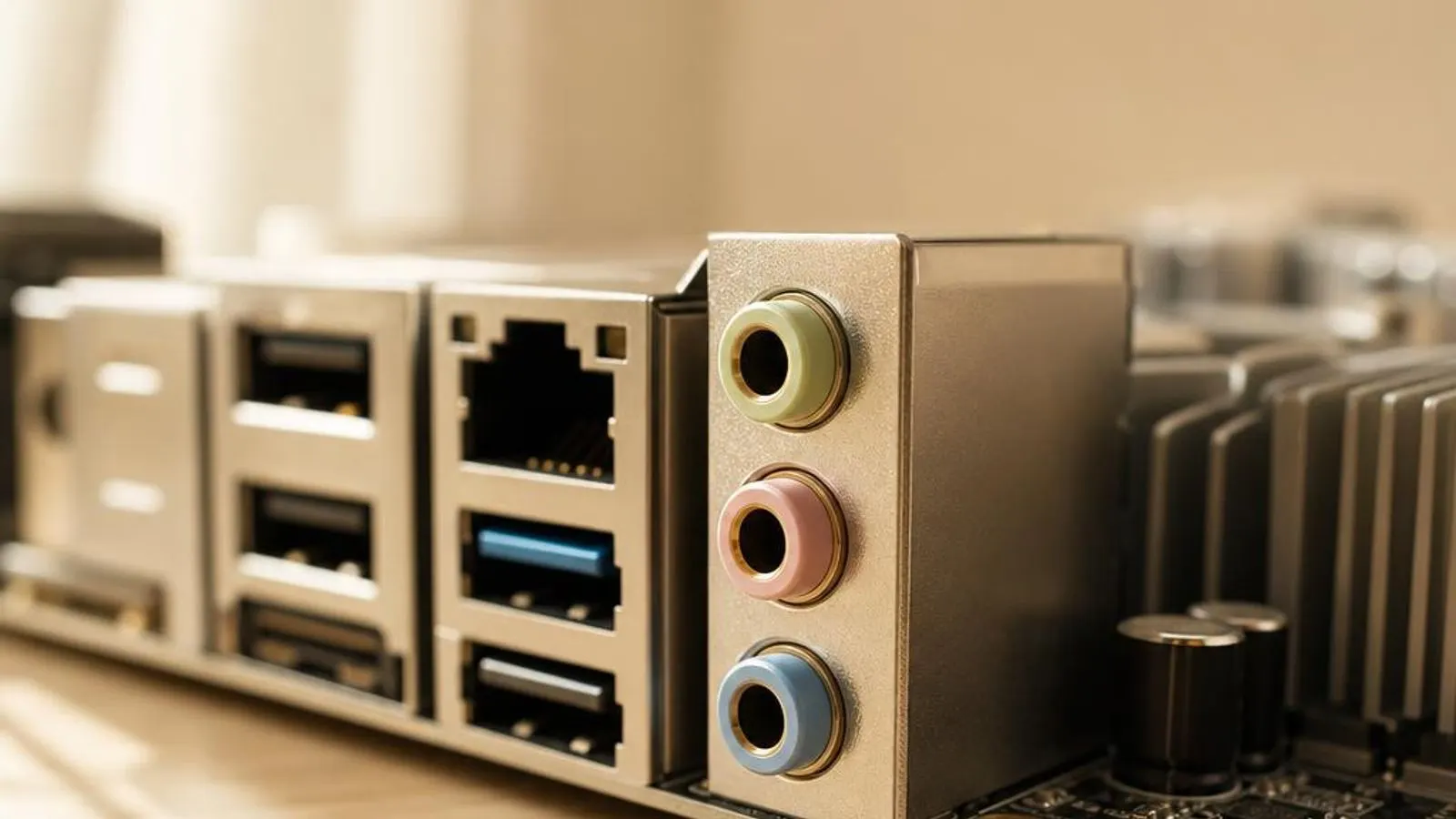
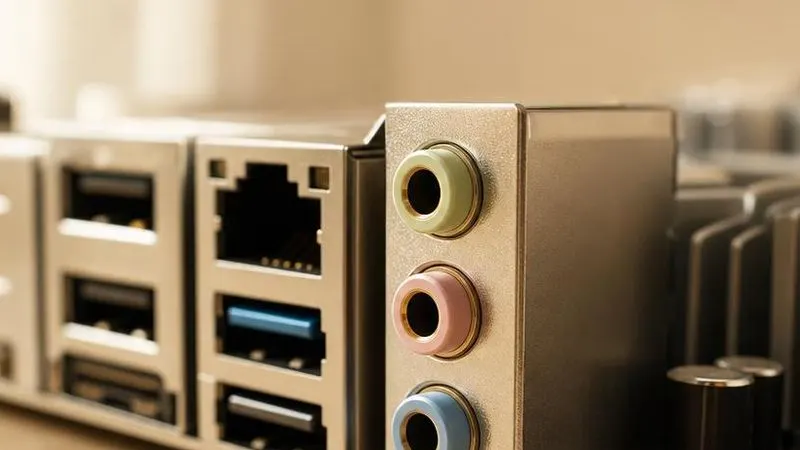
motherboard audio section shown with codec chip under EMI shield, gold 3.5mm jack stack (green, pink, blue), isolated audio trace channel

The audio driver connects the onboard High Definition Audio codec to the Windows sound stack. This reference explains the HD Audio bus, the audio endpoint model, crackle and latency faults, and how to update through Windows Update or your PC maker's support page for your exact model.

Driver Information

Hardware Familyaudio display
Categoryaudio
OSwin11, win10

In Short

  • The audio driver lets Windows drive the High Definition Audio codec soldered to your motherboard, turning digital sample streams into the analogue signal your headphones and speakers play. It manages the HD Audio bus, jack-detection, sample rates, and the mixer that blends every app's sound. When it fails you hear crackling, get no output device, or see a Code 10 fault; a reinstall or rollback in Device Manager usually restores clean audio.

What this driver does

The audio driver is the software that operates the High Definition Audio codec integrated into almost every PC motherboard. That codec is a small mixed-signal chip containing digital-to-analogue converters for playback and analogue-to-digital converters for the microphone input. The driver programmes the codec's registers over the HD Audio link, a dedicated bus between the motherboard's audio controller and the codec, and exposes the result to Windows as a set of playback and recording endpoints. Inside Windows the driver plugs into the audio endpoint model. Each physical connector, the green headphone jack, the pink microphone jack, and any digital S/PDIF output, becomes an endpoint the operating system can route audio to independently. The Windows Audio Session API, WASAPI, and the audio engine sit above the driver, mixing every application's stream, applying volume, and converting sample rates before handing a single blended buffer down to the codec. Jack detection is one of the codec's quieter jobs. When you plug headphones into the front-panel socket, the codec senses the impedance change and raises an interrupt; the driver reads it and tells Windows to switch the default output, which is why the speakers mute the instant a headset is connected. A driver that mishandles this sensing is why some machines keep playing through the speakers even with headphones plugged in. Latency and buffering round out the driver's role. It negotiates buffer sizes with the audio engine so that samples arrive at the converters steadily, without the underruns that produce clicks and pops. For low-latency work the driver may expose an exclusive mode that hands an application direct access to the endpoint, bypassing the shared mixer to shave milliseconds off the round trip.

Cutaway view of audio driver with major components labelled

Why updating matters

An out-of-date audio driver is a common source of the crackling, popping, and dropout complaints that plague otherwise healthy PCs. Codec vendors ship fixes for buffer-underrun handling, power-state transitions, and jack-detection quirks inside routine driver updates, and a machine still running the build it shipped with often carries bugs that a current package has already resolved. Keeping the driver current is the cheapest fix for intermittent audio glitches. Windows feature updates change the audio engine underneath the driver, and an old driver can fall out of step with a new endpoint model. That mismatch shows up as a missing output device after a major Windows upgrade, or as spatial-sound and communications-ducking features that simply refuse to work. Refreshing the driver realigns it with the operating system's current audio subsystem. Security matters here too, if less dramatically than for graphics. The audio driver runs kernel code that parses data from the codec and from user-mode audio sessions, so a flaw in that parsing is a potential local attack surface. Vendors fold those fixes into ordinary releases, which is another reason not to leave the audio stack frozen for years. The safe posture is measured. Update when you have crackle, a missing device, or a broken feature to fix, verify playback and recording across your usual apps, and roll back if a new build introduces a fault the old one lacked. The right sources are Windows Update for certified codec drivers and, for the newest build, the support page for your exact PC or motherboard model. This audio reference hosts no codec driver files and links to no vendor pages.

Audio driver connected wirelessly and physically to typical peripherals in its ecosystem

Signs a driver may be failing

  • Audio crackles or pops intermittently as buffer underruns interrupt the sample stream to the codec's converters
  • Windows shows 'No audio output device is installed' and the sound icon carries a red cross after an update
  • The HD Audio device appears in Device Manager with a yellow triangle and reports a Code 10 start failure
  • Speakers keep playing after headphones are plugged in because the codec's jack-detection is not being read
  • The microphone input records only silence or a loud hum even though the recording endpoint is enabled
  • A brief click is heard whenever playback starts or stops as the codec transitions its power state

How it fits into the OS stack

Drivers operate in the background, serving as translators. Here is where the Audio driver sits between your apps and the hardware.

Diagram showing how a audio driver driver sits between the application layer and the hardware

Distribution comparison

Vendor Comparison
ProviderFeatures & Stability
RealtekRealtek codecs such as the ALC series are the most common onboard audio silicon, and their driver ships an Audio Console for jack reassignment, environment effects, and per-connector configuration. Realtek packages are also the ones most often re-badged by PC makers, so the model-specific version can differ from the generic Realtek build.
IntelIntel's Smart Sound Technology, or SST, is an on-die audio DSP found on many recent laptops that offloads noise suppression and wake-word detection from the CPU. Its driver stack layers on top of the HD Audio interface and requires an Intel-supplied component that generic codec drivers do not provide.
MicrosoftWindows ships an inbox High Definition Audio Device driver that speaks the standard HD Audio interface. It gives you basic stereo playback and recording without any vendor extras, which makes it a reliable fallback when a vendor package fails, though it lacks jack reassignment and effects.

Before you start

1Open Device Manager by right-clicking the Start button.
2Expand the relevant device category for your hardware.
3Right-click the specific component to open Properties.
4Check the current driver version in the Driver tab.
"Only install drivers from your operating system's update tool or the manufacturer's official support page."

Where this driver comes from

Drivers for Audio driver typically reach your PC through one of three routes: shipped natively with the Windows operating system, delivered dynamically through system updates, or published directly by the hardware manufacturer for your specific model.

To ensure system stability, always allow your OS to handle baseline generic drivers. If you are experiencing performance issues or require advanced control panels, identify the exact model of your hardware and consult the device manufacturer's dedicated support resources.

Fixing installation problems

1

Run the built-in audio troubleshooter

In Settings open System, then Sound, and select Troubleshoot common sound problems. The troubleshooter checks the default endpoint, the audio service, and disabled devices, and it resolves many missing-device and no-output faults without touching the driver at all.

2

Confirm the codec state in Device Manager

Expand Sound, video and game controllers and inspect the High Definition Audio device. A yellow triangle with Code 10 means the driver failed to start the codec; open Properties to read the status text before deciding between a reinstall and a rollback.

3

Reinstall the audio driver

Right-click the audio device, choose Uninstall device, and tick the box to remove the driver software so stale configuration is cleared. Reboot; Windows reloads the inbox HD Audio driver and then offers the vendor codec package through Windows Update.

4

Restart the Windows Audio service

Open the Services console, find Windows Audio and Windows Audio Endpoint Builder, and restart both. A hung audio service produces a missing default device that looks like a driver fault but is really the endpoint host having stalled.

5

Check exclusive-mode and enhancement settings

In the Sound control panel open the device's Properties, and under Advanced clear the allow-exclusive-control option if an app is monopolising the endpoint. Disabling audio enhancements here also cures crackle that a signal-processing effect introduces rather than the driver.

How to uninstall or rollback

1Click the Driver tab in the properties window.
2Select "Roll Back Driver" to revert to the previous version.
3If greyed out, use "Uninstall Device" instead.
1

Step 1

Open Device Manager and expand Sound, video and game controllers to find the audio codec entry
2

Step 2

Double-click the audio device and switch to the Driver tab to read its current version and date
3

Step 3

Click Roll Back Driver; a greyed-out button means Windows retained no previous codec package to restore
4

Step 4

Select a reason when asked and let Windows reinstate the earlier audio driver
5

Step 5

Reboot, then test playback and microphone recording on both front and rear connectors

Safety Warning

Do not power off the machine mid-install, and avoid layering a bare Realtek package over an OEM-customised codec driver; a mismatched audio stack can silence every output and disable jack detection until you fall back to the inbox HD Audio driver.

Common error codes

The HD Audio codec and its converters

At the heart of onboard sound is the High Definition Audio codec, a mixed-signal chip that bridges the digital and analogue worlds. Its digital-to-analogue converters take the sample stream Windows produces and turn it into the voltage that drives your headphones and speakers, while its analogue-to-digital converters do the reverse for the microphone input. The number and quality of those converters set the ceiling for how many independent outputs a board offers and how clean the signal is. The codec talks to the motherboard's audio controller over the HD Audio link, a dedicated serial bus that carries both the sample streams and the register writes the driver uses to configure the chip. Because Intel standardised this interface, any codec can be driven at a basic level by the inbox Windows driver, which is why sound usually works even before a vendor package is installed. What the vendor driver adds is control over the codec's flexible pin configuration. A single physical jack can be retasked, so the same green socket can serve as a headphone output or a line input depending on how the driver programmes the codec's pins. That retasking, along with the analogue mixer and any built-in effects, is what the vendor audio console exposes and the bare inbox driver does not.

The Windows audio endpoint model

Above the driver, Windows organises sound around endpoints. Every physical connector and every virtual device becomes a separate endpoint that applications and the operating system can target independently, which is how you can send music to the speakers while a call routes to a headset. The audio engine mixes the streams from every session, applies per-app and master volume, and resamples everything to a common format before the driver receives a single buffer. Two services keep this model alive. Windows Audio hosts the engine, and Windows Audio Endpoint Builder enumerates and maintains the endpoints; if either stalls, the default device vanishes and the fault looks exactly like a driver failure even though the codec is fine. Restarting both is the first move when a device disappears after seeming to work moments earlier. Applications reach the engine through the Windows Audio Session API, WASAPI. Most use shared mode, blending into the common mix, but a latency-sensitive application can request exclusive mode, taking sole ownership of an endpoint and bypassing the mixer for a shorter, more predictable path to the converters. That is powerful for recording but is also why one exclusive-mode app can lock everything else out of a device.

Latency, buffering, and where crackle comes from

Digital audio is delivered in buffers, small blocks of samples the driver feeds to the codec at a steady rate. The buffer size is a trade-off: larger buffers are forgiving of scheduling delays but add latency, while smaller buffers cut latency but leave little slack if the system is late delivering the next block. When a block arrives too late the converter runs dry, and that momentary starvation is the underrun you hear as a click or pop. The most common cause of underruns is not the audio driver at all but deferred procedure call, or DPC, latency from an unrelated kernel driver holding the processor too long. A misbehaving network or storage driver can spike DPC latency high enough to starve the audio buffer, which is why crackle sometimes correlates with disk or network activity rather than with playback settings. Diagnosis therefore looks wider than the codec. Disable audio enhancements and exclusive control first, since a signal-processing effect is the easiest cause to rule out. If crackle persists, look for a DPC latency source, and only then reinstall the audio driver. Raising the buffer size, where an application exposes it, trades a little latency for the headroom that keeps the converter fed.

Reading audio device error codes

When the audio driver cannot bring the codec up, Windows marks the device in Device Manager with a code that points at the cause. Code 10 is the one onboard audio meets most often: the driver failed to start the device, usually after a corrupted install, a broken binding following a Windows update, or a conflict with a leftover vendor component. The fix is a clean uninstall with the driver software removed, followed by a reboot onto the inbox driver. Code 43 appears when the audio controller reports a fault and Windows stops it, which on integrated audio often accompanies a wider chipset or firmware problem rather than the codec alone. Code 28 means no driver is installed for the device at all, the state you see when the vendor package was removed but nothing replaced it; installing a driver, whether inbox or vendor, clears it directly. Whatever the number, the method is consistent. Open the device's Properties, read the exact status string on the General tab, and match your action to it: reinstall for a corrupted Code 10, install any driver for a bare Code 28, and investigate the chipset and firmware for a Code 43. The code is a signpost, not a diagnosis, so always read the accompanying text before acting.

Where this driver comes from

The audio driver reaches your PC by three separate routes, and each implies a different maintenance habit. The first is the driver bundled with Windows itself. Every installation includes the inbox High Definition Audio Device driver, which speaks the standard HD Audio interface, so you get working stereo playback and microphone recording immediately, without any vendor software, at the cost of jack reassignment and effects. The second route is Windows Update. Once online, Windows compares your codec's hardware identifiers with its catalogue and offers a WHQL-certified vendor driver, sometimes automatically and sometimes under Optional updates. These certified packages carry the vendor's converter and power-state fixes and are the safest everyday source, though Windows Update frequently serves a generic codec build rather than your PC maker's customised one. The third route is the hardware maker publishing an audio codec driver for one specific board and PC model. Your laptop, desktop, or motherboard manufacturer validates a tailored package, complete with its audio console and any Intel Smart Sound component, against one exact configuration and posts it on that model's support page. That is where OEM jack reassignment and laptop noise-suppression features come from. This site describes all three routes in words only; it hosts no driver files and links to no vendor download pages, so identify your exact model and obtain any manual package from the maker's own support page.

Frequently asked questions

Reviewer:
Last Reviewed:

Related Drivers