generic Last reviewed 2026-08-18

Sound card driver

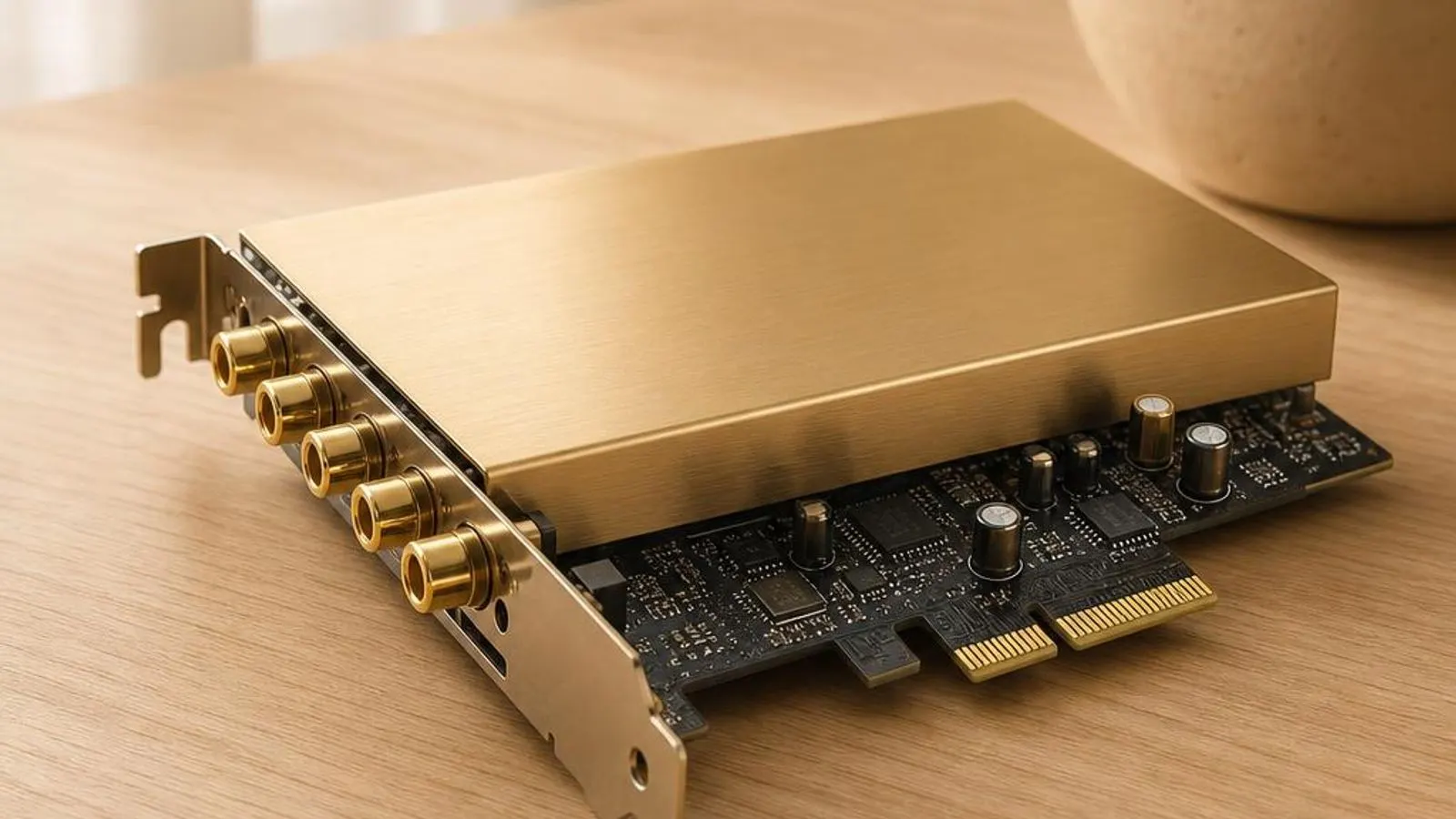
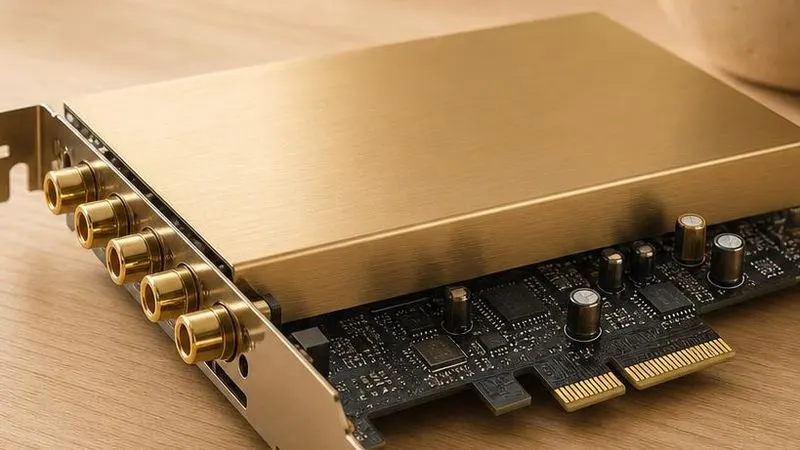
PCIe sound card shown with gold RCA and 3.5mm outputs, shielded op-amp section

The sound card driver operates a discrete PCIe or USB audio interface with its own converters and headphone amplifier. This reference explains ASIO, sample-clock handling, latency, and how to refresh the driver through Windows Update or your interface maker's support page for your exact model.

Driver Information

Hardware Familyaudio display
Categorysound-card
OSwin11, win10

In Short

  • A discrete sound card or USB audio interface has its own high-quality converters, headphone amplifier, and clock, and its driver exposes all of that to Windows plus, on many models, a low-latency ASIO path for music production. It manages the card's mixer, sample rates, and buffer sizes independently of onboard audio. When it fails you get no device, clicks under load, or a Code 10; a clean reinstall or rollback usually fixes it.

What this driver does

A sound card driver operates a dedicated audio device that exists specifically to do better than the motherboard codec. Whether it is a PCI Express card seated in the machine or a USB or Thunderbolt audio interface on the desk, the hardware carries its own digital-to-analogue and analogue-to-digital converters, a headphone amplifier sized for demanding cans, and frequently balanced inputs and outputs for studio gear. The driver is what makes that dedicated hardware usable from Windows. The driver exposes the card to Windows through the standard audio endpoint model, so a PCIe card or USB interface appears in the sound list just like any other output and input. On top of that shared path, most serious interfaces add a professional low-latency route through ASIO, the Audio Stream Input Output protocol, which lets a digital audio workstation talk to the hardware buffers almost directly and bypass the shared Windows mixer entirely. Sample-clock management is a defining job of a discrete interface driver. Precise conversion depends on a stable clock, and the driver configures whether the card runs on its own internal crystal or slaves to an external word clock or a digital input's embedded clock. Getting this wrong produces clicks, pitch drift, or a dropped digital lock, faults that never trouble simple onboard audio because it rarely deals with external clock sources. Beyond conversion, the driver drives the card's own control surface. Many interfaces include a hardware or software mixer with zero-latency monitoring, letting a performer hear the input directly without the round-trip delay of the computer. The driver programmes gain, routing, phantom power for condenser microphones, and monitoring blend, exposing controls that a general-purpose onboard codec simply does not have.

Cutaway view of sound card driver with major components labelled

Why updating matters

For a music-production interface the driver version is not a nicety but a determinant of whether the rig works at all. New releases fix the buffer and clocking bugs behind clicks and dropouts, add support for higher sample rates, and keep the ASIO path aligned with digital audio workstation updates. A studio interface running an old driver against a freshly updated DAW is a classic recipe for crashes and glitching that a current driver resolves. Windows feature updates shift the audio subsystem and the USB stack beneath the driver, and an interface driver that has not kept pace can lose its device entirely after a major upgrade. This is more acute for USB interfaces, where a change in the host controller driver can leave the interface enumerating but silent until its own driver is refreshed to match. Stability is a two-way street on professional hardware. A new driver can fix a long-standing dropout, or it can introduce a regression that a busy session cannot tolerate, which is why serious users freeze on a known-good driver during a project and update only between jobs. Keeping the previous version identified for rollback is standard practice in an audio workflow. Update when you have clicks, a missing device, or a DAW compatibility problem to solve, verify recording and playback at your working buffer size, and roll back if a new build destabilises a session. Certified interface drivers may come through Windows Update, but pro-audio hardware usually needs the specific package from your interface maker's support page for your exact model. This sound card reference hosts no interface driver files and links to no vendor pages.

Sound card driver connected wirelessly and physically to typical peripherals in its ecosystem

Signs a driver may be failing

  • The discrete sound card or USB interface is absent from the Windows sound list even though it is powered and connected
  • Clicks and dropouts appear during recording as the ASIO buffer underruns at a low buffer-size setting
  • The card shows a yellow triangle in Device Manager and reports a Code 10 failure to start after a Windows update
  • A digital input loses its clock lock, producing intermittent silence or a burst of noise on the S/PDIF or ADAT channel
  • The DAW cannot open the ASIO device because another application is holding the interface in exclusive mode
  • Phantom power or the headphone amplifier behaves erratically because the driver's control panel settings did not apply

How it fits into the OS stack

Drivers operate in the background, serving as translators. Here is where the Sound card driver sits between your apps and the hardware.

Diagram showing how a sound card driver driver sits between the application layer and the hardware

Distribution comparison

Vendor Comparison
ProviderFeatures & Stability
CreativeCreative's Sound Blaster PCI Express cards target gaming and home listening, pairing a dedicated headphone amplifier with a software suite for surround virtualisation and equalisation. Their driver exposes those effects through a control panel and supports the standard Windows endpoints rather than focusing on professional ASIO work.
FocusriteFocusrite USB interfaces such as the Scarlett range are built for recording, with balanced inputs, phantom power, and a low-latency ASIO driver that pairs tightly with digital audio workstations. Their control software manages gain, routing, and zero-latency monitoring for tracking musicians.
RMERME PCIe and USB interfaces are known for exceptionally stable, low-latency drivers and precise clocking, with a TotalMix routing matrix that runs on the hardware. Their driver reliability across Windows updates is a large part of why they are trusted in professional studios.

Before you start

1Open Device Manager by right-clicking the Start button.
2Expand the relevant device category for your hardware.
3Right-click the specific component to open Properties.
4Check the current driver version in the Driver tab.
"Only install drivers from your operating system's update tool or the manufacturer's official support page."

Where this driver comes from

Drivers for Sound card driver typically reach your PC through one of three routes: shipped natively with the Windows operating system, delivered dynamically through system updates, or published directly by the hardware manufacturer for your specific model.

To ensure system stability, always allow your OS to handle baseline generic drivers. If you are experiencing performance issues or require advanced control panels, identify the exact model of your hardware and consult the device manufacturer's dedicated support resources.

Fixing installation problems

1

Confirm the interface is enumerating

In Device Manager check Sound, video and game controllers for a PCIe card and also under USB or Audio inputs and outputs for a USB interface. If it is missing entirely, the fault is power, cable, or enumeration rather than the higher audio layers.

2

Read the device status for a Code 10

A yellow triangle with Code 10 means the driver failed to start the card. Open Properties to read the status text, then plan a clean reinstall; on a USB interface, a Code 10 after a Windows update often follows a change in the USB host controller driver.

3

Reinstall the interface driver cleanly

Uninstall the device with the delete-software option, unplug a USB interface, reboot, then install the model-specific package for your exact interface. Removing the old driver first clears the stale ASIO registration behind many DAW-cannot-open-device errors.

4

Tune the ASIO buffer size to stop dropouts

Open the interface's control panel and raise the buffer size. A larger buffer trades latency for stability and stops the underruns that cause clicks during recording; find the smallest buffer your session can sustain without glitching.

5

Set the correct clock source

In the control panel select the internal clock for standalone use, or slave the card to an external word clock or the digital input's embedded clock when connected to other digital gear. A clock mismatch is what causes the intermittent noise on a digital channel.

How to uninstall or rollback

1Click the Driver tab in the properties window.
2Select "Roll Back Driver" to revert to the previous version.
3If greyed out, use "Uninstall Device" instead.
1

Step 1

Open Device Manager and locate the interface under Sound, video and game controllers or the USB tree
2

Step 2

Double-click the device and, on the Driver tab, note its current version and date before proceeding
3

Step 3

Click Roll Back Driver to restore the previous interface package, or reinstall an earlier model-specific build if the button is unavailable
4

Step 4

Reconnect a USB interface, then reopen the control panel and restore your sample rate, buffer size, and clock source
5

Step 5

Reboot and test recording and playback in your DAW at the buffer size the session needs

Safety Warning

Do not enable phantom power while patching cables or with ribbon microphones connected, and do not remove a PCIe sound card driver mid-session; a lost ASIO registration or a sudden 48-volt surge can silence the interface or damage sensitive input gear.

Common error codes

Why a discrete interface beats onboard audio

A dedicated sound card or USB interface exists to overcome the compromises of motherboard audio. Onboard codecs sit inside an electrically noisy computer, share power with everything else, and use converters chosen for cost. A discrete interface isolates its analogue circuitry, uses a cleaner power path, and fits higher-grade digital-to-analogue and analogue-to-digital converters, so the noise floor drops and the headphone output can drive demanding headphones properly. The hardware differences are concrete. Balanced inputs and outputs reject interference over long cable runs, phantom power feeds studio condenser microphones, and a dedicated headphone amplifier delivers the current that high-impedance cans require. None of these are things a general-purpose onboard codec offers, and each is a reason a listener or a musician reaches for separate hardware. The driver is what turns that hardware advantage into something Windows and applications can use. It presents the card's endpoints, exposes its gain and routing controls, and, critically for musicians, provides the low-latency ASIO path. Without the right driver a capable interface is reduced to a basic soundcard, which is why the software is as important to the result as the converters themselves.

ASIO and the low-latency audio path

The standard Windows audio path routes every application through a shared mixer that resamples and blends streams, which is fine for listening but adds latency and processing a musician cannot afford. ASIO, the Audio Stream Input Output protocol, exists to bypass that. An ASIO driver gives a digital audio workstation near-direct access to the interface's hardware buffers, cutting the delay between playing a note and hearing it to a few milliseconds. The trade-off is the buffer size. A smaller buffer means lower latency but leaves less slack if the system is late delivering the next block, and when it underruns the converter starves and you hear a click. A larger buffer is rock solid but adds delay that makes live monitoring feel sluggish. Tuning the buffer to the smallest size a given session sustains cleanly is a routine part of setting up any recording rig. Because ASIO usually claims the interface exclusively, only one application can hold it at once, which is why a stray media player or browser tab can lock a DAW out of the device. This exclusivity is deliberate, guaranteeing the DAW uninterrupted access, but it makes closing other audio applications part of the ritual before a session and explains the common device-already-in-use error.

Clocking, sample rates, and digital connections

Accurate conversion depends on a stable, precise clock, and a discrete interface takes clocking far more seriously than onboard audio ever does. The driver decides whether the card runs on its own internal crystal or slaves to an external reference, and it configures the sample rate at which every converter operates. A jittery or mismatched clock smears the timing of each sample and degrades the sound even when nothing obviously breaks. The complication arrives with digital connections. Formats such as S/PDIF and ADAT carry a clock embedded in the data stream, and every device in a digital chain must agree on a single sample-clock source. If the card is set to its internal clock while receiving a digital input, the two clocks drift, the lock fails, and you hear intermittent silence or bursts of noise. Slaving to the incoming clock, or distributing a shared word clock, keeps the whole chain in step. Sample-rate handling also matters for compatibility. Recording at a higher rate captures more detail but consumes more bandwidth and buffer headroom, and every device in the path must support the chosen rate. The driver's control panel is where you set the master rate and clock source, and getting both right is what separates a clean digital signal from the crackle and dropouts of a mismatched setup.

Troubleshooting missing devices and start failures

When an interface goes missing the first question is whether Windows sees the hardware at all. A PCIe card appears under Sound, video and game controllers, while a USB interface may show under the USB tree or Audio inputs and outputs. If it is absent everywhere, the fault lies below the driver in power, cabling, or enumeration, so reseating a card or moving a USB interface to a direct rear port comes before any software step. A device that appears with a Code 10 has enumerated but failed to start, and the cause is usually a corrupted install or, on USB interfaces, a Windows update that changed the host controller driver out from under it. The correct fix is a clean reinstall: uninstall with the driver software removed, reboot, and install the current model-specific package so the driver re-registers against the present USB stack. Once the device starts but an application cannot open it, the trouble has moved up to the ASIO layer. A stale ASIO registration from an old driver, or another program holding the exclusive device, produces the device-already-in-use error. Clearing the old registration with a clean reinstall and closing competing audio applications resolves it, restoring the DAW's exclusive access to the interface.

Where this driver comes from

A sound card driver reaches your PC by three routes, and for pro-audio hardware the route you choose largely determines whether the interface is usable for its purpose. The first route is the driver Windows ships with. Windows includes a class-compliant USB audio driver and inbox handling that can give many interfaces basic stereo endpoints immediately, enough to hear sound but without ASIO, the vendor mixer, or advanced clocking. The second route is Windows Update. For a recognised card Windows may offer a certified basic driver matched to the hardware identifiers, which is convenient for a listening or gaming card. It rarely installs the vendor control panel and almost never provides the low-latency ASIO component, so it is a starting point rather than a complete solution for recording. The third route is the interface maker publishing a driver for a specific model, and for professional work it is the essential one. The vendor validates the ASIO driver, the routing and monitoring control panel, and the clocking logic against one exact model and posts the package on that model's support page. This site describes all three routes in words only, hosts no driver files, and links to no vendor download pages, so identify your exact interface and obtain any manual package from the maker's own support page.

Frequently asked questions

Reviewer:
Last Reviewed:

Related Drivers