HomeDriversFingerprint Reader

Fingerprint Reader drivers

Windows Hello fingerprint biometric drivers.
Input Devices Windows 11, Windows 10 Reviewed Aug 18, 2026
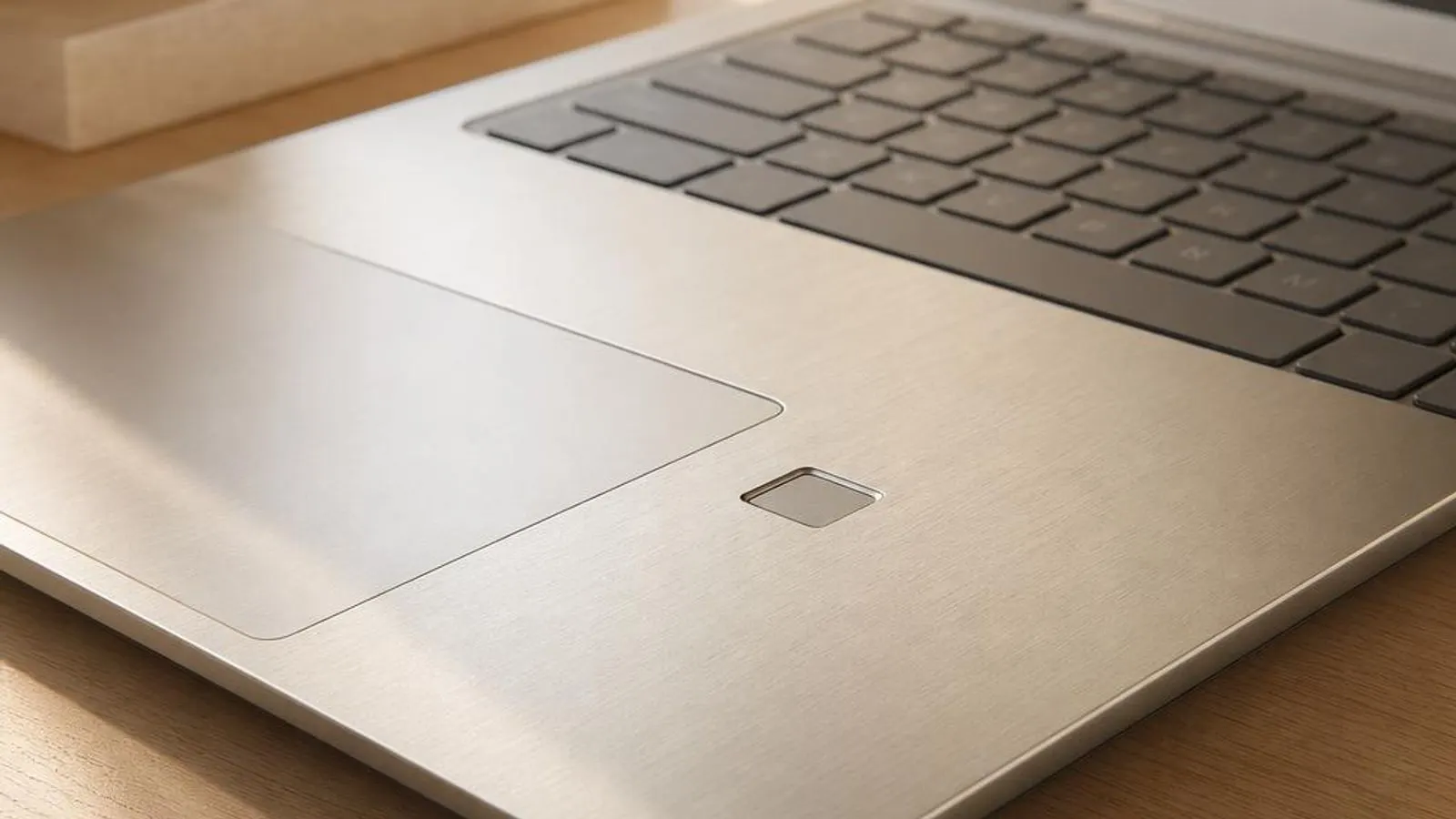
laptop power button with an integrated fingerprint sensor shown with fingertip approaching, ridge pattern faintly visible

You might also need

Fingerprint Reader drivers we cover
What does a fingerprint reader driver do?

A fingerprint reader driver lets Windows use a biometric sensor to sign you in and authorise actions. The sensor, usually a capacitive array that senses the ridges and valleys of your fingertip by measuring tiny differences in capacitance, captures an image of the print. Optical and ultrasonic sensors exist too, but capacitive readers dominate laptops and USB dongles. That image is processed into a mathematical template, a compact set of features rather than a stored picture of your finger.

On Windows the sensor plugs into the Windows Biometric Framework, or WBF, through a Windows Biometric Driver. The driver and the Windows Biometric Service present a standard interface so Windows Hello can enrol fingerprints and later verify them, whatever the underlying hardware. This is why enrolment happens in one place, under Settings, Accounts, Sign-in options, regardless of whether the sensor is made by Goodix, Synaptics or another supplier.

Read the full fingerprint reader driver explainer

Why keeping it updated matters

Fingerprint driver and firmware updates address specific, testable failures rather than vague speed claims. A common one is Hello reporting that it cannot recognise your finger even after several tries; this can be a sensor or driver regression that a corrected Windows Biometric Driver or sensor firmware resolves. Another is the sensor vanishing from Sign-in options after a Windows feature update replaced the vendor driver, so fingerprint sign-in disappears entirely.

Security is a genuine reason to keep these drivers current. Fingerprint sensors and their match-on-sensor firmware have been the subject of real vulnerabilities, and vendors ship firmware updates that harden the secure channel between the sensor and the TPM. Applying those updates through the proper route closes gaps that could otherwise let an attacker bypass the biometric check. Sleep-and-wake reliability also improves when a stale driver mishandling resume is refreshed.

Common warning signs of fingerprint reader driver failure

  • Windows Hello repeatedly says it cannot recognise your finger despite a clean, dry, enrolled fingertip
  • The fingerprint option has disappeared from Settings, Sign-in options after a Windows feature update
  • Enrolment fails partway through with an error before all the required finger scans are captured
  • The reader works after a cold boot but is unavailable when the laptop wakes from sleep
  • Windows Hello sign-in is greyed out with a message that the biometric service is not running
  • Device Manager shows the fingerprint sensor under Biometric devices with a code such as 10, 28 or 43

How to fix fingerprint reader driver problems

1

Confirm the biometric service is running

Press Windows and R, type services.msc and check that the Windows Biometric Service is started and set to run automatically. Windows Hello sign-in greys out when this service is stopped, so starting it and re-testing often restores the fingerprint option without touching the driver at all.

2

Remove and re-enrol your fingerprints

In Settings, Accounts, Sign-in options, remove all enrolled fingerprints and add them again, scanning the finger from several angles. A partial or poor original enrolment, or a template invalidated by an update, is a frequent cause of Hello rejecting a genuine finger.

3

Reinstall the sensor in Device Manager

Open Device Manager, expand Biometric devices, right-click the fingerprint sensor and choose Uninstall device, then reboot so Windows redetects it. This rebuilds the Windows Biometric Driver binding and clears many enrolment and recognition faults caused by a corrupt install.

4

Refresh the biometric driver via Windows Update

Open the Settings app and go to Windows Update, click Check for updates, then open Advanced options followed by Optional updates. Install any listed fingerprint or biometric sensor driver and reboot. This is the supported route to a maintained Windows Biometric Driver matched to your sensor.

See every step in detail

Error codes linked to this hardware

Helpful guides

Frequently asked questions

Why does Windows Hello keep saying it can't recognise my fingerprint?

Repeated rejection of a genuine finger is often a poor original enrolment or a template invalidated by an update. Remove all fingerprints in Sign-in options and re-enrol, scanning from several angles with a clean, dry finger. If it persists, reinstall the sensor in Device Manager and check Optional updates in Windows Update for a corrected biometric driver matched to your sensor.

Why did the fingerprint option disappear from my sign-in options?

A Windows feature update can replace or remove the vendor biometric driver, so Windows Hello no longer sees the sensor. Confirm the Windows Biometric Service is running in services.msc, reinstall the sensor in Device Manager, and if it stays missing install the matched Goodix or Synaptics driver from your laptop model's support page, then reboot.

Is my actual fingerprint stored on my PC where malware could steal it?

On a match-on-sensor reader, no. The enrolled template is stored inside the sensor's secure memory and the comparison happens on the sensor chip, so only a yes-or-no result and a released key leave the device. Windows Hello binds that result to TPM-protected credentials, meaning neither a raw fingerprint image nor the template sits on your disk for malware to read.