generic Last reviewed 2026-08-18

Fingerprint reader driver

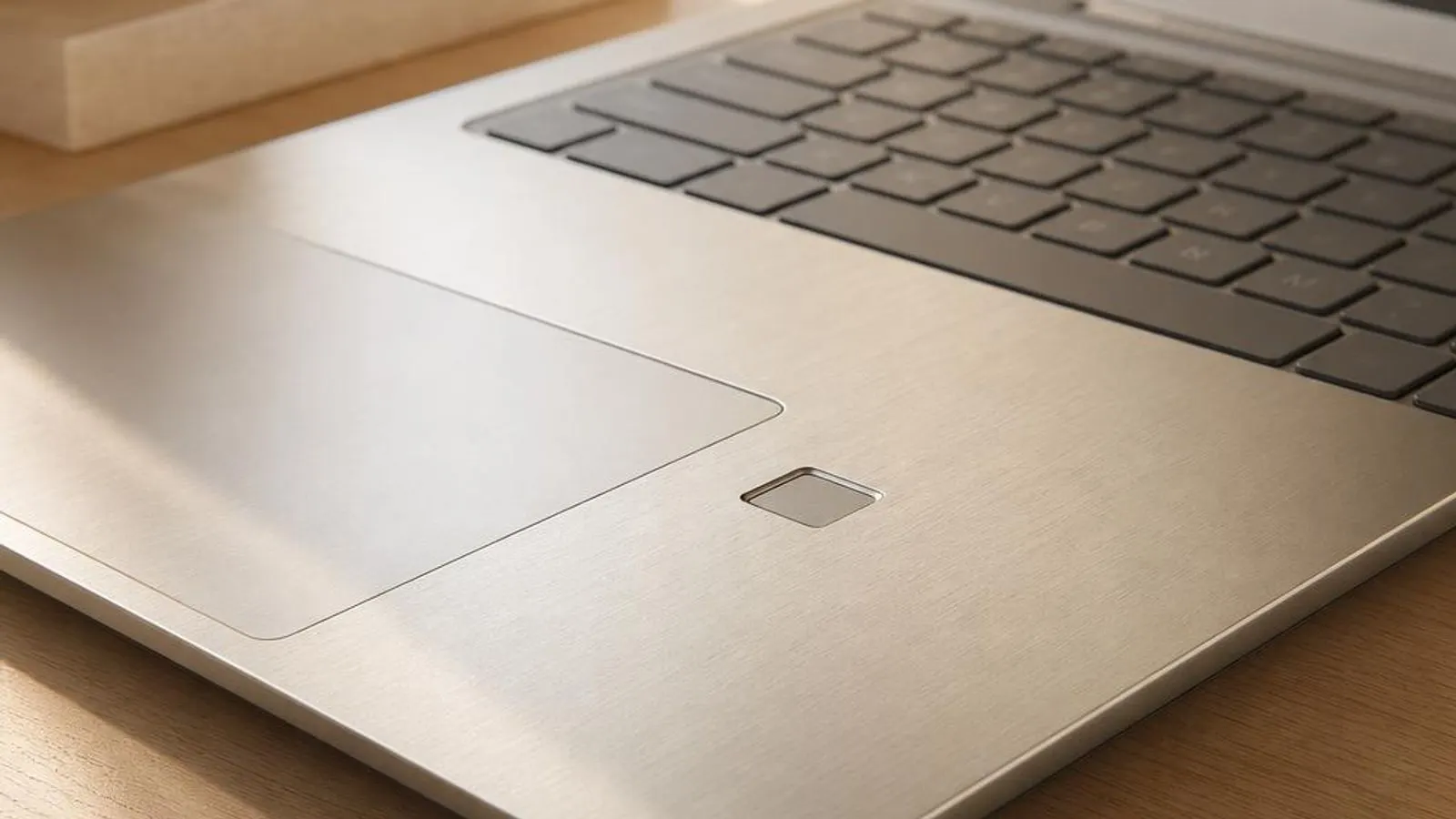
laptop power button with an integrated fingerprint sensor shown with fingertip approaching, ridge pattern faintly visible

How the fingerprint reader driver connects a biometric sensor to Windows Hello through the WBF framework, why match-on-sensor and secure enclaves matter, and how to update via Windows Update or your laptop maker's model support page.

Driver Information

Hardware Familyinput devices
Categoryfingerprint
OSwin11, win10

In Short

  • A fingerprint reader driver links a capacitive or optical biometric sensor to Windows Hello through the Windows Biometric Framework. On match-on-sensor readers the fingerprint template is stored and compared inside the sensor itself, so raw prints never reach Windows. When sign-in fails, Hello is unavailable or the sensor is flagged in Device Manager, a corrupt driver or a broken WBF service is often the cause. Update through Windows Update, or your laptop model's support page for the matched sensor driver and firmware.

What this driver does

A fingerprint reader driver lets Windows use a biometric sensor to sign you in and authorise actions. The sensor, usually a capacitive array that senses the ridges and valleys of your fingertip by measuring tiny differences in capacitance, captures an image of the print. Optical and ultrasonic sensors exist too, but capacitive readers dominate laptops and USB dongles. That image is processed into a mathematical template, a compact set of features rather than a stored picture of your finger. On Windows the sensor plugs into the Windows Biometric Framework, or WBF, through a Windows Biometric Driver. The driver and the Windows Biometric Service present a standard interface so Windows Hello can enrol fingerprints and later verify them, whatever the underlying hardware. This is why enrolment happens in one place, under Settings, Accounts, Sign-in options, regardless of whether the sensor is made by Goodix, Synaptics or another supplier. Many modern readers are match-on-sensor, sometimes called match-in-sensor. Here the enrolled template is stored inside the sensor's own secure memory, and the comparison between a live scan and the stored template happens on the sensor chip. Only a yes-or-no match result, plus a released secret for Windows Hello, leaves the sensor. Because the raw fingerprint and template never travel to Windows or sit on the disk, this design sharply limits what malware or a stolen drive can expose. Windows Hello binds the biometric result to your account credentials, not to a stored password, using keys protected by the TPM (Trusted Platform Module). A successful match releases a key that unlocks your sign-in, so a fingerprint stands in for typing your PIN or password. The driver's job is narrow but critical: capture reliably, talk correctly to the WBF, and never expose the biometric data it handles. A fault here breaks sign-in without any obvious hardware damage.

Cutaway view of fingerprint reader driver with major components labelled

Why updating matters

Fingerprint driver and firmware updates address specific, testable failures rather than vague speed claims. A common one is Hello reporting that it cannot recognise your finger even after several tries; this can be a sensor or driver regression that a corrected Windows Biometric Driver or sensor firmware resolves. Another is the sensor vanishing from Sign-in options after a Windows feature update replaced the vendor driver, so fingerprint sign-in disappears entirely. Security is a genuine reason to keep these drivers current. Fingerprint sensors and their match-on-sensor firmware have been the subject of real vulnerabilities, and vendors ship firmware updates that harden the secure channel between the sensor and the TPM. Applying those updates through the proper route closes gaps that could otherwise let an attacker bypass the biometric check. Sleep-and-wake reliability also improves when a stale driver mishandling resume is refreshed. Even so, a reader that enrols cleanly and signs you in reliably rarely needs touching. The honest guidance is to update when Hello starts rejecting a good finger, when the sensor disappears from Windows, when Device Manager flags it, or when a vendor has published a firmware security fix. Routine updating of a working biometric sensor risks a regression that locks you out of the fast sign-in you rely on. The legitimate routes are Windows Update, which maintains many biometric drivers and the WBF components, and the support page for your specific laptop or reader model, where the maker publishes the matched sensor driver and firmware. This site links to neither and hosts nothing; it describes both routes in plain words so you can reach the one your device needs, and it never frames any source as an official download.

Fingerprint reader driver connected wirelessly and physically to typical peripherals in its ecosystem

Signs a driver may be failing

  • Windows Hello repeatedly says it cannot recognise your finger despite a clean, dry, enrolled fingertip
  • The fingerprint option has disappeared from Settings, Sign-in options after a Windows feature update
  • Enrolment fails partway through with an error before all the required finger scans are captured
  • The reader works after a cold boot but is unavailable when the laptop wakes from sleep
  • Windows Hello sign-in is greyed out with a message that the biometric service is not running
  • Device Manager shows the fingerprint sensor under Biometric devices with a code such as 10, 28 or 43

How it fits into the OS stack

Drivers operate in the background, serving as translators. Here is where the Fingerprint reader driver sits between your apps and the hardware.

Diagram showing how a fingerprint reader driver driver sits between the application layer and the hardware

Distribution comparison

Vendor Comparison
ProviderFeatures & Stability
Windows Biometric Framework (Windows Update)Provides the WBF, the Windows Biometric Service and generic support so a compliant sensor can enrol and verify through Windows Hello. Many vendor drivers are also delivered here as optional updates. Enrolment and management live in Settings, Sign-in options regardless of the sensor maker, and updates arrive through Windows Update.
Goodix and Synaptics sensorsTwo of the most common laptop fingerprint sensor suppliers, both offering match-on-sensor designs where the template stays on the chip. Their Windows Biometric Drivers and firmware are validated by the laptop maker for each model, and a mismatch between driver and firmware is a frequent cause of Hello failures that a matched package fixes.
USB fingerprint dongles (Kensington and similar)External readers that add Windows Hello to a desktop or older laptop, presenting as a USB biometric device. They rely on their own WBF driver from the maker's support page, and features and firmware are tied to that specific model rather than to the laptop's built-in sensor stack.

Before you start

1Open Device Manager by right-clicking the Start button.
2Expand the relevant device category for your hardware.
3Right-click the specific component to open Properties.
4Check the current driver version in the Driver tab.
"Only install drivers from your operating system's update tool or the manufacturer's official support page."

Where this driver comes from

Drivers for Fingerprint reader driver typically reach your PC through one of three routes: shipped natively with the Windows operating system, delivered dynamically through system updates, or published directly by the hardware manufacturer for your specific model.

To ensure system stability, always allow your OS to handle baseline generic drivers. If you are experiencing performance issues or require advanced control panels, identify the exact model of your hardware and consult the device manufacturer's dedicated support resources.

Fixing installation problems

1

Confirm the biometric service is running

Press Windows and R, type services.msc and check that the Windows Biometric Service is started and set to run automatically. Windows Hello sign-in greys out when this service is stopped, so starting it and re-testing often restores the fingerprint option without touching the driver at all.

2

Remove and re-enrol your fingerprints

In Settings, Accounts, Sign-in options, remove all enrolled fingerprints and add them again, scanning the finger from several angles. A partial or poor original enrolment, or a template invalidated by an update, is a frequent cause of Hello rejecting a genuine finger.

3

Reinstall the sensor in Device Manager

Open Device Manager, expand Biometric devices, right-click the fingerprint sensor and choose Uninstall device, then reboot so Windows redetects it. This rebuilds the Windows Biometric Driver binding and clears many enrolment and recognition faults caused by a corrupt install.

4

Refresh the biometric driver via Windows Update

Open the Settings app and go to Windows Update, click Check for updates, then open Advanced options followed by Optional updates. Install any listed fingerprint or biometric sensor driver and reboot. This is the supported route to a maintained Windows Biometric Driver matched to your sensor.

5

Apply the matched vendor driver and firmware

If the sensor is missing or Hello still fails, install the Goodix, Synaptics or dongle package from your laptop or reader maker's support page for your exact model, keeping driver and firmware in step. Re-enrol afterwards and never interrupt a sensor firmware flash.

How to uninstall or rollback

1Click the Driver tab in the properties window.
2Select "Roll Back Driver" to revert to the previous version.
3If greyed out, use "Uninstall Device" instead.
1

Step 1

Confirm you can sign in with your PIN or password before changing anything, so a rollback never locks you out
2

Step 2

Open Device Manager, expand Biometric devices and open the fingerprint sensor's properties
3

Step 3

On the Driver tab choose Roll Back Driver; if greyed out, Windows retained no previous biometric driver package
4

Step 4

When rollback is unavailable, use Uninstall device with the delete-driver-software box ticked, then reboot to fall back to the inbox biometric driver
5

Step 5

Re-enrol your fingerprints in Sign-in options after the rollback, since the earlier templates may no longer match the restored driver

Safety Warning

Never interrupt a fingerprint sensor firmware update by unplugging a reader or powering off the laptop, because a half-written firmware image can brick the secure element so the sensor no longer enumerates, and always keep a PIN so you are not locked out if biometrics fail.

Common error codes

How a fingerprint becomes a secure sign-in

A fingerprint reader captures the pattern of ridges and valleys on your fingertip. Most laptop and dongle sensors are capacitive: a grid of tiny plates measures the difference in capacitance where a ridge touches the surface versus where a valley leaves an air gap, producing a detailed image of the print. Optical sensors photograph the finger and ultrasonic ones use sound, but capacitive designs dominate because they are compact and hard to fool with a flat photo. The raw image is never used directly for matching. Instead the sensor's processor extracts a template, a mathematical description of distinctive features such as ridge endings and bifurcations. Templates are far smaller than an image and cannot be trivially reversed into your actual print, which is central to the privacy of the whole system. Enrolment simply builds a good template from several scans of the same finger at different angles. When you later touch the sensor, a fresh scan is turned into a template and compared with the enrolled one. A close-enough match, within a tolerance the vendor tunes to balance false rejects against false accepts, counts as success. That success is what the driver reports up to Windows Hello, which then releases the credential that signs you in. The driver never has to understand fingerprints; it just moves data and results correctly between the sensor and the framework.

The Windows Biometric Framework and Windows Hello

Windows abstracts every fingerprint sensor behind the Windows Biometric Framework, or WBF. A Windows Biometric Driver for the specific sensor plugs into the WBF, and the Windows Biometric Service manages enrolment, matching requests and the results. Because of this layer, you enrol and manage fingerprints in one consistent place under Settings, Accounts, Sign-in options, no matter which company made the sensor. Windows Hello sits on top of the WBF and connects a successful biometric match to your account. It does not simply type a stored password. Instead your credentials are protected by keys held in the TPM, and a fingerprint match releases the key that unlocks sign-in. This design means a match on the sensor is bound to that specific PC and its TPM, so an attacker cannot lift a template and reuse it elsewhere. This architecture explains several common faults. If the Windows Biometric Service is stopped, Hello greys out even though the sensor is fine. If the WBF driver is corrupt or mismatched, enrolment or matching fails. And because Hello leans on the TPM and a PIN fallback, Windows insists you set a PIN before enabling fingerprint sign-in, which is also your safety net when a driver problem strikes.

Match-on-sensor, secure storage and privacy

The strongest fingerprint readers are match-on-sensor, sometimes called match-in-sensor. In this design the enrolled template is stored inside the sensor's own protected memory, and the comparison of a live scan against that template happens on the sensor chip rather than on the PC. Only a simple pass-or-fail result, and a released secret used by Hello, ever leaves the device. This matters for privacy and security. Because neither the raw fingerprint image nor the template travels across the USB or serial bus to Windows, and because they are not written to the disk, malware running in Windows or a thief with a stolen drive cannot harvest your biometric data. The sensor becomes a small vault whose only output is a trustworthy yes or no, cryptographically tied to the machine's TPM. It also shapes how you troubleshoot. Because templates live on the sensor, a driver or firmware change can invalidate them, which is why re-enrolment is a standard step after any update. And because the secure channel between sensor and TPM is security-critical, vendors sometimes ship firmware to harden it against attack, making those particular updates worth applying promptly through the proper route rather than ignoring.

Where this driver comes from

A fingerprint reader driver reaches your PC by one of three routes. The first is shipped with the operating system: Windows includes the Windows Biometric Framework and generic biometric support, so a compliant sensor can often enrol and verify through Windows Hello soon after setup, with no separate download. This inbox support is the base the other routes extend. The second route is delivered through system updates. Windows Update maintains the WBF components and carries many sensor drivers as optional updates, reached through Settings, Windows Update and Optional updates. This keeps a supported reader current without visiting any manufacturer site, though it does not always include the exact firmware a match-on-sensor device needs. The third route is a biometric driver and firmware published by the maker for one specific sensor. Laptop brands and sensor suppliers such as Goodix and Synaptics, and dongle makers, post the matched driver and firmware for each device on that model's support page, tuned to its exact sensor and secure element. Use this route when the sensor is missing after a Windows change, when a driver-and-firmware mismatch breaks Hello, or for a security firmware fix. Whichever route you take, match the package to your precise model; this reference names the routes in words and links to none, because it hosts no files and never frames any source as an official download.

Reading Device Manager error codes for biometric sensors

Device Manager confirms whether a Hello problem is really the driver. The sensor appears under Biometric devices, and a yellow triangle with a code narrows the cause. Code 10, device cannot start, usually means a corrupt driver or a driver-and-firmware mismatch, and is often cleared by uninstalling and redetecting the sensor after confirming the Windows Biometric Service is running. Code 28, drivers not installed, appears when the sensor enumerated but Windows has no biometric driver for it, common after a clean install or a feature update; installing the matched vendor driver resolves it. Code 43 means Windows stopped the device after a reported fault, which can be a failing sensor or a bad firmware state. Code 19 points to a damaged registry entry for the biometric sensor, usually fixed by uninstalling it so Windows rebuilds those keys on reboot. The workflow is consistent, with one biometric-specific caveat: always confirm your PIN or password works first, so a driver change never locks you out. Note the code, check the biometric service, uninstall the sensor and reboot for a clean reinstall, then check Windows Update Optional updates. Only then install the matched vendor driver and firmware from your model's support page, re-enrol your fingerprints, and finally consider the hardware.

Frequently asked questions

Reviewer:
Last Reviewed:

Related Drivers