generic Last reviewed 2026-08-18

Keyboard driver

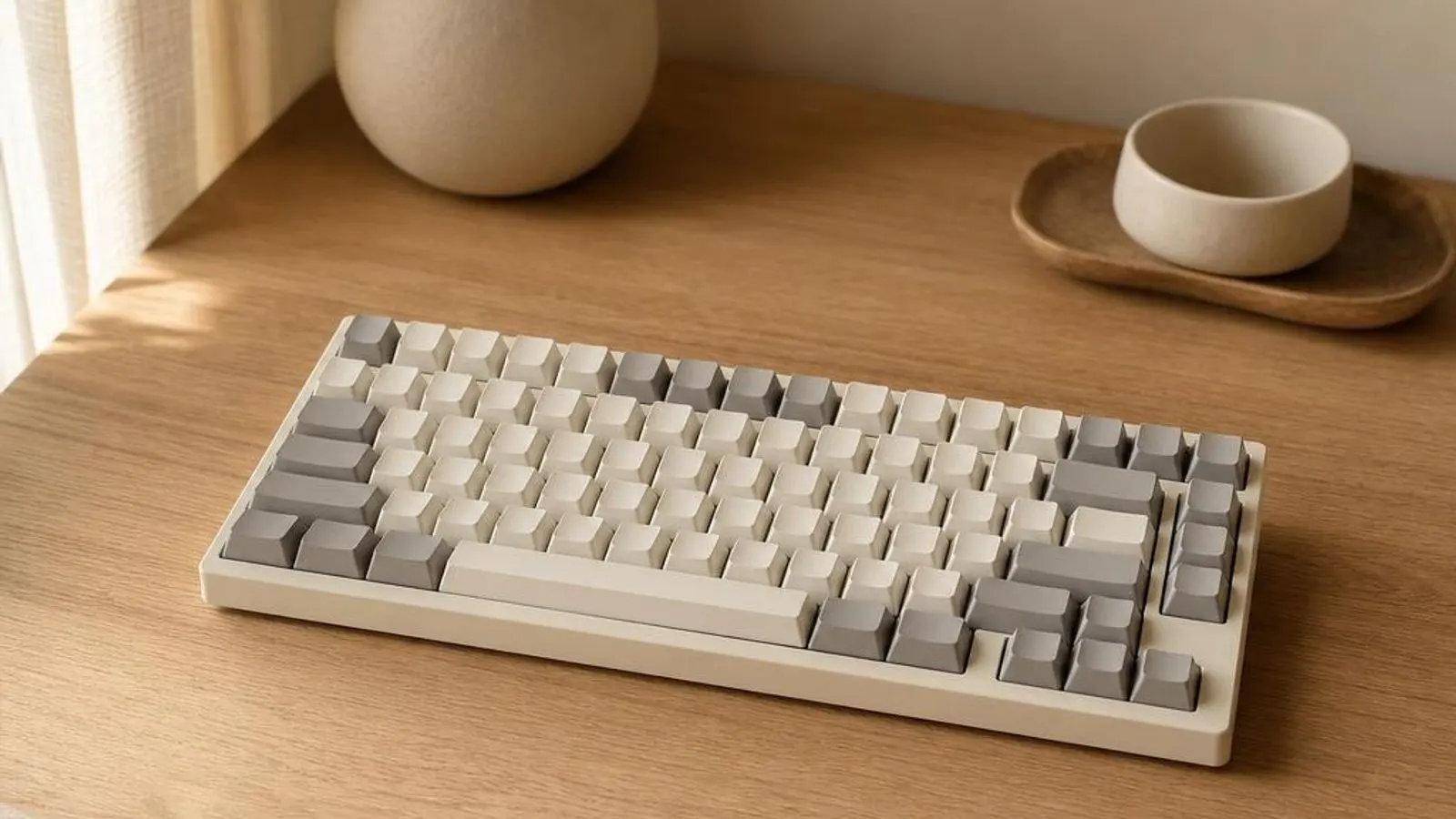
mechanical keyboard at three-quarter angle shown with a few keycaps removed to show switches

How the Windows keyboard driver stack turns key presses into HID scan codes, why keeping kbdhid.sys and i8042prt.sys healthy matters, and how to update through Windows Update or your keyboard maker's model support page.

Driver Information

Hardware Familyinput devices
Categorykeyboard
OSwin11, win10

In Short

  • A keyboard driver is the software layer that converts the electrical signal from a pressed key into a scan code the operating system can act on. On modern PCs the chain runs kbdhid.sys over USB HID, while older PS/2 boards use i8042prt.sys on the 8042 controller. When keys repeat, stick or stop registering, a corrupt or mismatched driver is a common cause. You update it either through Windows Update, which carries a generic HID keyboard driver, or through the support page for your exact keyboard model when you need vendor macro and lighting software.

What this driver does

A keyboard driver sits between the physical keys and every application that expects text or shortcuts. When you press a key, the keyboard's onboard microcontroller detects which switch closed on the key matrix, applies debounce timing so a single press is not read as several, and sends a HID (Human Interface Device) report over USB. The driver receives that report, maps the raw usage code to a Windows scan code, and passes it up through the Win32k input subsystem to the focused window. On contemporary Windows PCs the keyboard work is shared by a small stack of system components. Hidusb.sys and hidclass.sys handle the raw USB HID transport, kbdhid.sys translates HID keyboard usages into scan codes, and kbdclass.sys presents a single unified keyboard to the rest of Windows. A layout DLL such as kbdus.dll or kbduk.dll then decides which character each scan code produces, which is why the same physical key can type a hash or a pound sign depending on the selected layout. Legacy and laptop internal keyboards often still speak PS/2 through the 8042-style controller, driven by i8042prt.sys. That path matters because it works before Windows fully loads, letting you enter the BIOS or UEFI firmware, choose a boot device, or reach Safe Mode when the USB stack has not yet initialised. Understanding which path your keyboard uses tells you where to look when only some keys, or only certain boot screens, misbehave. Features like N-key rollover (NKRO), which lets the board report many simultaneous keys without ghosting, media keys, and per-key backlighting are exposed through additional HID collections or a vendor filter driver. The core typing function keeps working on the generic Microsoft driver, but macros, on-the-fly DPI-style profile switching and RGB effects usually need the manufacturer's own software running alongside the class driver.

Cutaway view of keyboard driver with major components labelled

Why updating matters

Keeping the keyboard stack current fixes concrete, reproducible faults rather than delivering vague speed-ups. A frequent example is the sticky repeat or double-typing problem, where one keystroke registers twice; this often traces to a debounce or HID report-parsing regression that a corrected kbdhid.sys or a vendor firmware update resolves. Another is the dead media row or backlight after a Windows feature update replaced a vendor filter driver with the generic one. Updates also matter for laptops that suspend and resume. A stale i8042prt or ACPI keyboard driver can leave the internal keyboard unresponsive after the lid is opened, forcing a full reboot until the corrected driver restores wake handling. Security is a factor too, because keyboards are HID devices and a badly behaved filter driver can crash the input stack with a bugcheck, taking the whole session down. That said, a keyboard that types perfectly rarely needs a driver change at all. The honest guidance is to update when you are chasing a specific symptom, when Windows flags the device with an error in Device Manager, or when you have just installed a keyboard whose macro and lighting features are missing. Routine, symptom-free updating of a working typing device carries more risk of introducing a regression than benefit. When you do update, the two legitimate routes are Windows Update, which offers a maintained generic HID keyboard driver and sometimes an optional vendor package, and the support page for your specific keyboard model, where the maker publishes the driver and companion app matched to that product. This keyboard reference links to neither route; it describes both in words so you can find them for your own board yourself.

Keyboard driver connected wirelessly and physically to typical peripherals in its ecosystem

Signs a driver may be failing

  • A single key press registers twice or repeats without being held, pointing at a debounce or HID report fault
  • Certain keys such as the media row, Fn combinations or backlight controls do nothing while ordinary letters work
  • The keyboard works in the UEFI firmware setup but stops responding once the Windows desktop loads
  • Device Manager shows the keyboard with a yellow triangle and an error code such as 10, 43 or 28
  • The internal laptop keyboard is unresponsive after waking from sleep until the machine is fully rebooted
  • N-key rollover fails so pressing several gaming keys at once causes ghosting or dropped inputs

How it fits into the OS stack

Drivers operate in the background, serving as translators. Here is where the Keyboard driver sits between your apps and the hardware.

Diagram showing how a keyboard driver driver sits between the application layer and the hardware

Distribution comparison

Vendor Comparison
ProviderFeatures & Stability
Microsoft generic HID keyboard (Windows Update)Provides kbdhid.sys, kbdclass.sys and the standard layout DLLs so any HID keyboard types immediately with no extra install. It handles NKRO reporting and standard media keys but ignores vendor macros, onboard profiles and RGB effects. This is the baseline that ships in the box with Windows and is refreshed through Windows Update.
Logitech (Options+ / G HUB)Adds a filter driver and background service that expose Logitech-specific programmable keys, per-profile lighting and firmware updates for boards such as the G915 or MX Keys. Typing works without it, but Smart Actions, per-application profiles and Lightsync animation require the companion app to be running.
Razer (Synapse) and Corsair (iCUE)Install a HID filter plus a service that unlock per-key RGB, macro recording and hardware-stored profiles on boards like the BlackWidow or K70. Both rely on their service being resident; if Synapse or iCUE is closed the keyboard falls back to onboard settings and custom effects stop until it is relaunched.

Before you start

1Open Device Manager by right-clicking the Start button.
2Expand the relevant device category for your hardware.
3Right-click the specific component to open Properties.
4Check the current driver version in the Driver tab.
"Only install drivers from your operating system's update tool or the manufacturer's official support page."

Where this driver comes from

Drivers for Keyboard driver typically reach your PC through one of three routes: shipped natively with the Windows operating system, delivered dynamically through system updates, or published directly by the hardware manufacturer for your specific model.

To ensure system stability, always allow your OS to handle baseline generic drivers. If you are experiencing performance issues or require advanced control panels, identify the exact model of your hardware and consult the device manufacturer's dedicated support resources.

Fixing installation problems

1

Confirm the fault is the driver, not the hardware

Plug the keyboard into a different USB port, ideally a rear motherboard port rather than a hub, and test in Notepad. Boot into the UEFI firmware setup: if the keyboard works there but fails in Windows, the hardware is fine and the driver or HID stack is the likely cause.

2

Reinstall the keyboard in Device Manager

Open Device Manager, expand Keyboards, right-click your keyboard entry and choose Uninstall device. Reboot; Windows redetects the HID keyboard and rebuilds kbdhid.sys and kbdclass.sys bindings from a clean state, which clears most double-typing and stuck-key faults caused by a corrupt install.

3

Let Windows Update refresh the HID driver

Open Settings, go to Windows Update, click Check for updates, then open Advanced options and Optional updates. If a driver for your keyboard or its HID controller is listed, install it and reboot. This is the supported way to obtain a maintained generic keyboard driver.

4

Install the vendor app for missing features

If typing works but macros, media keys or lighting are dead, install the companion software from your keyboard maker's support page for your exact model, such as G HUB, Synapse or iCUE. Reboot so its filter driver and service load and the extra HID collections become active.

5

Rule out filter-driver conflicts

If a bugcheck or freeze started after installing keyboard software, uninstall competing input utilities so only one vendor service manages the board. Overlapping filter drivers from two suites fighting over the same HID device are a classic cause of input-stack crashes.

How to uninstall or rollback

1Click the Driver tab in the properties window.
2Select "Roll Back Driver" to revert to the previous version.
3If greyed out, use "Uninstall Device" instead.
1

Step 1

Open Device Manager, expand Keyboards and double-click the affected keyboard entry to open its properties
2

Step 2

Switch to the Driver tab and choose Roll Back Driver; if it is greyed out, Windows kept no prior keyboard driver package
3

Step 3

When rollback is unavailable, use Uninstall device with the delete-driver-software box ticked, then reboot to fall back to the generic HID keyboard driver
4

Step 4

If a vendor suite caused the fault, uninstall G HUB, Synapse or iCUE from Settings so its filter driver and service are removed cleanly
5

Step 5

Reboot and retest typing in Notepad before reinstalling any companion app, confirming the base keyboard driver is stable first

Safety Warning

Do not unplug the keyboard or power off the PC while its firmware is being flashed by the vendor app, as an interrupted update can leave the onboard microcontroller in a state where the board no longer enumerates.

Common error codes

How a key press becomes text

Every keyboard is built around a switch matrix: rows and columns of contacts that the onboard microcontroller scans thousands of times a second. When you press a key, its switch bridges one row and one column, and the controller identifies the coordinate. Because mechanical and membrane switches physically bounce, the firmware applies debounce logic, ignoring contact chatter for a few milliseconds so one press yields exactly one event. The controller then packages the result as a HID report and sends it over USB, or over the PS/2 protocol on older internal boards. A HID report is a compact packet whose structure is described by a report descriptor the keyboard advertises when it enumerates. Windows reads that descriptor to learn which bytes carry which key usages, which is how a single generic driver can serve thousands of different keyboard models without custom code. On the Windows side, hidusb.sys and hidclass.sys take the raw report, kbdhid.sys converts HID keyboard usages into Windows scan codes, and kbdclass.sys merges every attached keyboard into one logical device. Finally a layout DLL decides the character: the same scan code becomes a different symbol under a UK versus a US layout. This layered design is why a wrong layout, not a broken driver, is often the real reason a key types the wrong character.

USB HID versus PS/2 and why boot screens still work

Two transport paths coexist on most PCs. External keyboards and many laptop keyboards present as USB HID devices handled by the hidusb and kbdhid chain. Older desktops and some laptop internal keyboards use PS/2, driven by i8042prt.sys talking to the legacy 8042 keyboard controller. The distinction is not academic: it decides which driver you troubleshoot and explains a common puzzle. The firmware and the PS/2 path are available very early in boot, before Windows loads its full USB stack. That is why you can enter UEFI setup, pick a boot device or reach the Windows Recovery menu with the keyboard working, even when the same keyboard later fails on the desktop. If a keyboard works at those early screens but dies in Windows, the fault lives in the Windows driver stack, not the hardware. USB HID keyboards depend on the USB host controller and its own driver being healthy. A keyboard that is dead everywhere, including firmware setup, more often has a cable, port or controller problem than a driver one. Knowing which transport your board uses lets you point the fix at the right layer instead of reinstalling software that was never the cause.

NKRO, ghosting, macros and RGB

On a simple keyboard matrix, pressing three keys that share rows and columns can create a phantom fourth signal, called ghosting; cheaper boards guard against it by refusing extra simultaneous keys, which is anti-ghosting. Gaming keyboards add hardware diodes to give N-key rollover, where every pressed key reports independently. The driver and the board's report descriptor together decide how many concurrent keys Windows will accept. Macros, per-application profiles and per-key RGB are not part of the standard keyboard HID usage table, so they travel through extra HID collections and a vendor filter driver plus a resident service. This is why the same physical board types perfectly on the generic driver yet shows no lighting or macros until Logitech G HUB, Razer Synapse or Corsair iCUE is installed and running. That split has a practical upside. If a lighting or macro feature misbehaves, you can usually keep typing while you troubleshoot the vendor layer, because the core keyboard class driver is independent of it. It also means a corrupt vendor service can be uninstalled to restore a clean, functional keyboard without losing the ability to type.

Where this driver comes from

A keyboard driver reaches your PC by one of three routes, and knowing which applies avoids a lot of wasted effort. The first is shipped with the operating system: Windows already contains kbdhid.sys, kbdclass.sys, i8042prt.sys and the standard layout DLLs, so almost any keyboard types the moment you plug it in, with no download at all. This inbox driver is the foundation every other route builds on. The second route is delivered through system updates. Windows Update maintains the generic HID keyboard driver and occasionally offers an optional vendor-supplied package for a recognised board. You reach these through Settings, then Windows Update, then Optional updates. This path is convenient and the packages are signed and tested, but it seldom includes the full macro and lighting suite that gaming keyboards need. The third route is a keyboard driver published by the hardware maker for one specific board. Companies like Logitech, Razer and Corsair post the driver, firmware and companion app for each product on that product's support page, matched to its exact features and layout. Use this route when you need those extras or a firmware fix. Whichever route you take, you should confirm the package matches your precise model; this reference names the routes in words and links to none of them, because it hosts no files and points to no vendor download.

Reading Device Manager error codes for keyboards

When something is wrong, Device Manager is the fastest diagnostic. A yellow triangle on the Keyboards entry, opened to the General tab, shows a numeric code that narrows the cause. Code 10, device cannot start, usually means a corrupt driver or a firmware and driver mismatch, and is often cleared by uninstalling and redetecting the keyboard. Code 43 means Windows stopped the device after it reported a problem, which can be a failing controller or a bad firmware state. Code 28, drivers not installed, appears when a specialised HID collection, such as a vendor macro interface, has no driver yet; installing the companion app resolves it. Code 19 points to a damaged registry entry for the keyboard, frequently fixed by uninstalling it so Windows rebuilds the keyboard's registry keys on reboot. Codes 22 and 45 relate to a device that was disabled or is not currently connected rather than to the keyboard driver itself. The practical workflow is consistent across these codes. Note the code, try a different USB port to rule out the controller, uninstall the device and reboot to force a clean reinstall, then check Windows Update Optional updates and finally the vendor app. If the keyboard also fails in UEFI setup, stop treating it as a driver issue and inspect the cable, port or the board itself.

Frequently asked questions

Reviewer:
Last Reviewed:

Related Drivers