generic Last reviewed 2026-08-18

Game controller driver

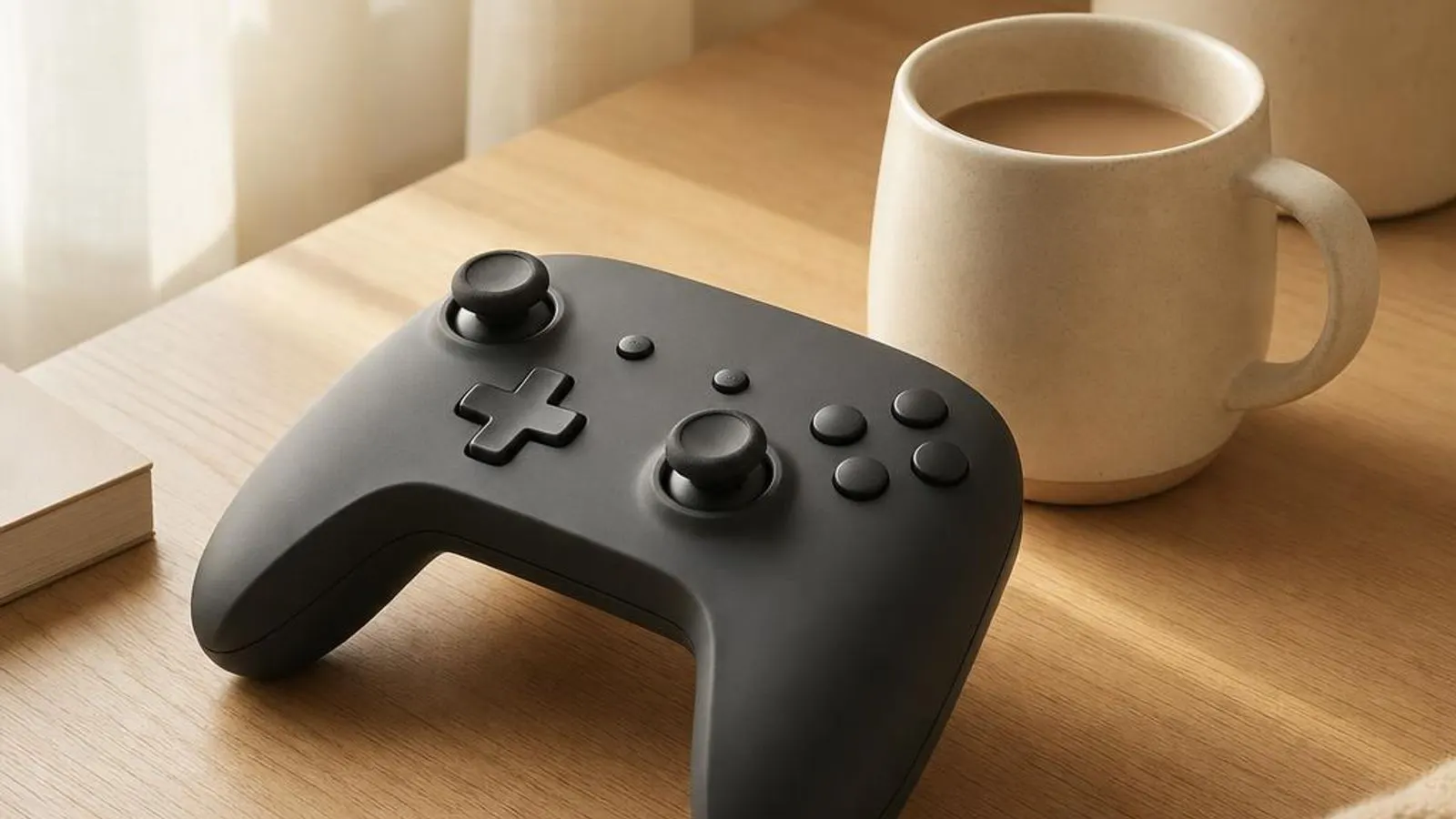
generic gamepad, three-quarter view shown with twin sticks, d-pad, four face buttons, shoulder triggers

How the game controller driver exposes gamepads to Windows through XInput and DirectInput, why Xbox, DualSense and third-party pads differ, and how to update via Windows Update or your controller maker's model support page.

Driver Information

Hardware Familyinput devices
Categorygamepad
OSwin11, win10

In Short

  • A game controller driver presents a gamepad's sticks, triggers, buttons and rumble to Windows games. Xbox controllers use the XInput API and its inbox driver, giving plug-and-play support with correct trigger and vibration mapping. Older and generic pads use the DirectInput path with a HID game-controller driver. A PlayStation DualSense works best over its own path or via a compatibility layer like Steam Input. Update the Xbox driver through Windows Update, or use your controller model's support page for firmware and adapter drivers.

What this driver does

A game controller driver translates the analog and digital inputs of a gamepad into signals that Windows and games can read. Inside the controller, potentiometers or Hall-effect sensors measure each analog stick's position, analog triggers report how far they are pulled, and the face and shoulder buttons report simple pressed states. A microcontroller samples all of this, packages it, and sends it over USB, a 2.4GHz wireless dongle or Bluetooth as HID (Human Interface Device) reports. Windows exposes controllers to games through two main programming interfaces. XInput is the modern standard designed around the Xbox controller layout, with a fixed set of two sticks, two analog triggers, a directional pad, standard buttons and dual-motor rumble. Because the layout is fixed, games written for XInput map every control correctly without per-pad configuration, which is why an Xbox pad simply works in most current titles. The older DirectInput path, and the generic HID game-controller support behind it, handles everything that is not an XInput device: flight sticks, racing wheels, arcade sticks and many third-party pads. DirectInput reports raw axes and numbered buttons, so games must let the player map controls, and features like rumble are less standardised. The driver still enumerates the device correctly, but the in-game experience depends on how the title interprets those generic axes. A PlayStation DualSense sits between worlds. Over USB or Bluetooth it presents as a HID device Windows recognises, but its adaptive triggers, haptics and gyro are not native XInput features. Many players route it through a compatibility layer such as Steam Input, which re-presents the DualSense to games as a virtual controller. Understanding which API and path your pad uses explains why the same controller feels seamless in one game and needs manual mapping in another.

Cutaway view of game controller driver with major components labelled

Why updating matters

Controller driver and firmware updates fix concrete faults rather than promising a vague edge. A frequent one is stick drift, where the cursor or camera moves with no input; while worn potentiometers are often the root cause, a firmware update can add or widen a deadzone to mask early drift. Another is the pad recognised in Windows but ignored by games, typically an XInput versus DirectInput mismatch that a corrected driver or the vendor app resolves. Wireless behaviour is a common reason to update. A stale Xbox wireless adapter driver or Bluetooth stack can cause input lag, button latency or a controller that disconnects mid-session. Refreshing the adapter driver and the controller firmware often stabilises the link and cuts latency. After a Windows feature update, rumble or trigger response sometimes changes because the inbox XInput driver was replaced, and reinstalling the correct driver restores it. Still, a controller that maps cleanly and holds its connection rarely needs a change. The honest guidance is to update when you have a named symptom such as drift, lag or a dead button, when Device Manager flags the pad, or when a new controller's advanced features like adaptive triggers are missing. Routine updating of a working gamepad tends to add regression risk rather than benefit. The legitimate routes are Windows Update, which maintains the inbox XInput and HID game-controller drivers and the Xbox wireless adapter driver, and the support page for your specific controller model, where the maker publishes firmware and any adapter or configuration app. This site links to neither and hosts nothing; it describes both routes in plain words so you can reach the one your controller needs.

Game controller driver connected wirelessly and physically to typical peripherals in its ecosystem

Signs a driver may be failing

  • A stick moves the camera or cursor with no input, the classic sign of analog stick drift
  • Windows sees the controller in Game controllers but games do not respond to it, an XInput or DirectInput mismatch
  • The wireless controller lags, stutters or disconnects mid-game under interference or a stale adapter driver
  • Rumble or the analog triggers behave differently after a Windows feature update replaced the inbox driver
  • A DualSense connects but adaptive triggers, haptics or the gyro do not work in a given game
  • Device Manager flags the controller or its wireless adapter with a code such as 10, 28 or 43

How it fits into the OS stack

Drivers operate in the background, serving as translators. Here is where the Game controller driver sits between your apps and the hardware.

Diagram showing how a game controller driver driver sits between the application layer and the hardware

Distribution comparison

Vendor Comparison
ProviderFeatures & Stability
Microsoft Xbox controller (XInput, Windows Update)Uses the inbox XInput driver so sticks, triggers, the D-pad and dual-motor rumble map correctly in most modern games with no setup. Wired, Xbox Wireless Adapter and Bluetooth connections are all supported and maintained through Windows Update. This is the plug-and-play baseline for Windows gaming.
Sony DualSense / DualShock 4Presents as a HID device Windows recognises, working out of the box for basic input, but adaptive triggers, haptics and gyro are not native XInput features. Many players route it through Steam Input, which exposes those features and re-maps the pad to a virtual controller games understand.
8BitDo, Logitech and third-party padsVary widely: some emulate an Xbox pad over XInput for instant compatibility, others expose a DirectInput device needing manual mapping. Firmware and a configuration app from the maker often add an XInput mode, remapping and deadzone tuning, and adapters may need their own driver from the vendor.

Before you start

1Open Device Manager by right-clicking the Start button.
2Expand the relevant device category for your hardware.
3Right-click the specific component to open Properties.
4Check the current driver version in the Driver tab.
"Only install drivers from your operating system's update tool or the manufacturer's official support page."

Where this driver comes from

Drivers for Game controller driver typically reach your PC through one of three routes: shipped natively with the Windows operating system, delivered dynamically through system updates, or published directly by the hardware manufacturer for your specific model.

To ensure system stability, always allow your OS to handle baseline generic drivers. If you are experiencing performance issues or require advanced control panels, identify the exact model of your hardware and consult the device manufacturer's dedicated support resources.

Fixing installation problems

1

Verify the controller in the Windows test panel

Press Windows and R, type joy.cpl and open the controller's properties to watch buttons and axes respond in real time. If the panel shows correct input, the driver and hardware are fine and the problem is game-side XInput or DirectInput mapping rather than the controller driver.

2

Reconnect and reinstall in Device Manager

Open Device Manager, find the controller under Xbox Peripherals or Human Interface Devices, right-click it and choose Uninstall device, then reboot so Windows redetects it. This rebuilds the XInput or HID game-controller binding and clears many unresponsive or half-mapped controller faults.

3

Refresh the controller driver via Windows Update

Open Settings and go to Windows Update, click Check for updates, then open Advanced options and Optional updates. Install any listed controller or Xbox Wireless Adapter driver and reboot. This is the supported route to maintained XInput and HID game-controller drivers and the wireless adapter driver.

4

Apply controller firmware from the maker

For drift, latency or trigger faults, install the controller's firmware update via the maker's app from your model's support page, such as the Xbox Accessories app or a third-party configurator. Never disconnect the pad during the flash, as an interrupted firmware write can leave it unable to pair.

5

Use Steam Input for DualSense features

To get adaptive triggers, haptics or gyro from a DualSense, enable controller support in Steam so Steam Input re-presents the pad to games. This resolves the common case where Windows sees the DualSense but a game ignores its advanced features because they are not native XInput.

How to uninstall or rollback

1Click the Driver tab in the properties window.
2Select "Roll Back Driver" to revert to the previous version.
3If greyed out, use "Uninstall Device" instead.
1

Step 1

Open Device Manager and locate the controller under Xbox Peripherals or Human Interface Devices
2

Step 2

Open its properties, go to the Driver tab and choose Roll Back Driver; if greyed out, no previous controller driver was retained
3

Step 3

When rollback is unavailable, use Uninstall device with the delete-driver-software box ticked, then reboot to fall back to the inbox XInput or HID driver
4

Step 4

If a vendor configurator or adapter driver caused the fault, uninstall it from Settings so its driver and app are removed
5

Step 5

Reboot and confirm the controller responds correctly in joy.cpl before reinstalling any configuration app or firmware

Safety Warning

Do not disconnect a controller or its wireless adapter, or close the updater, while the maker's app is flashing controller firmware, because an interrupted firmware write can leave the pad unable to pair or enumerate.

Common error codes

How a gamepad's inputs reach a game

A gamepad turns physical motion into numbers. Each analog stick uses two potentiometers, or increasingly Hall-effect sensors, to report its X and Y position as a value across a range, so a game can read partial tilt rather than just a direction. Analog triggers do the same along one axis, reporting how far they are pressed, while face and shoulder buttons report simple on-or-off states. A microcontroller samples all of these many times a second. The controller packs these readings into HID reports and sends them over USB, a 2.4GHz dongle or Bluetooth. Windows receives them and makes the controller available to games through an input API. The key point is that the raw data is generic; what makes it usable is the API layer deciding that a particular axis is the left stick and a particular byte is the A button, so a game does not have to guess. Rumble travels the other way. A game asks the driver to spin the controller's vibration motors, and on an XInput pad the two motors, a heavy low-frequency one and a lighter high-frequency one, are addressed in a standard way. Advanced pads add features like the DualSense's voice-coil haptics and resistive triggers, which need a richer path than XInput provides. Following this input and feedback flow explains where each kind of controller problem actually lives.

XInput versus DirectInput

Windows offers two controller APIs, and the difference explains most compatibility puzzles. XInput is built around the Xbox controller's fixed layout: two sticks, two analog triggers, a D-pad, standard buttons and dual rumble. Because the layout never varies, a game written for XInput maps every control correctly with no player setup, which is why Xbox pads feel seamless in modern titles. DirectInput is the older, more general interface. It reports whatever axes and numbered buttons a device has, which suits flight sticks, wheels and arcade sticks that do not fit the Xbox mould. The cost is that games must let players map controls, and features like rumble are inconsistently supported. A DirectInput pad often shows up perfectly in the Windows test panel yet does nothing in a game that only listens for XInput. This split is the root of the recurring complaint that Windows detects a controller but a game ignores it. The fix is not usually a new driver but changing how the pad is presented: switching a third-party pad into its XInput mode, or routing it through a compatibility layer that re-exposes it as an Xbox controller. Recognising whether a title uses XInput or DirectInput points you straight at the right solution.

Wired, Xbox Wireless and Bluetooth connections

How a controller connects changes both latency and which driver you troubleshoot. A wired USB connection is the most reliable and lowest latency, depending only on the USB controller and the input driver. The Xbox Wireless Adapter uses a proprietary low-latency radio that needs its own driver, and it generally beats Bluetooth for responsiveness, which matters in fast games. Bluetooth is convenient and widely supported but adds a little latency and depends on the PC's Bluetooth radio driver. A Bluetooth controller that pairs but reconnects slowly, or drops after sleep, usually has a Bluetooth stack issue rather than a controller-driver one. Knowing the transport stops you reinstalling controller software when the real fault is one layer down in the radio driver. Interference and power are real variables for wireless pads. The 2.4GHz band is crowded, so an adapter placed behind a metal case or next to a USB 3 device can suffer stutters that look like a driver bug. A low battery frequently mimics driver lag with dropped inputs. Charging the pad, moving the adapter to a clear front port and updating the adapter driver resolve many wireless controller complaints before any deeper change.

Where this driver comes from

A game controller driver reaches your PC by one of three routes. The first is shipped with the operating system: Windows contains the XInput driver and generic HID game-controller support, so an Xbox pad and many standard controllers work the moment they connect, with no download at all. This inbox support underpins the plug-and-play experience most Windows gamers expect. The second route is delivered through system updates. Windows Update maintains the inbox XInput and HID controller drivers and the Xbox Wireless Adapter driver, and can offer an optional package for a recognised device. You reach these by opening Settings, then Windows Update, then Optional updates, and installing any controller or adapter item listed. This keeps the core controller experience current without visiting any manufacturer site. The third route is a controller driver or firmware published by the maker for one specific gamepad. Microsoft, Sony and third-party brands post firmware, configurators and adapter drivers for each controller on that product's support page, tuned to its exact features. Use this route for a firmware drift fix, to add an XInput mode to a generic pad, or to drive an adapter Windows does not recognise. Whichever route you take, match the software to your precise controller model; this reference names the routes in words and links to none, because it hosts no files and points to no vendor download.

Reading Device Manager error codes for controllers

Device Manager confirms whether a controller problem is a driver fault. The pad can appear under Xbox Peripherals or Human Interface Devices, and a yellow triangle with a code narrows the cause. Code 10, device cannot start, usually means a corrupt controller driver or a firmware and driver mismatch, and is often cleared by uninstalling and redetecting the device or the wireless adapter. Code 28, drivers not installed, appears when a controller or an adapter enumerated but Windows found no driver, common with a third-party adapter that needs a vendor driver; installing it resolves the code. Code 43 means Windows stopped the device after a reported fault, which can be a failing adapter or a bad firmware state. Code 19 points to a damaged registry entry for the controller, usually fixed by uninstalling the pad so its registry keys rebuild on reboot. The workflow is consistent. Note the code, test the controller in joy.cpl to separate driver from game mapping, try a different USB port for a wired pad or adapter, uninstall the device and reboot for a clean reinstall, then check Windows Update Optional updates. Only after those steps should you install the maker's firmware or adapter driver from your model's support page, and only then suspect the hardware.

Frequently asked questions

Reviewer:
Last Reviewed:

Related Drivers