Network Adapter drivers
Wireless and wired network adapter drivers.
You might also need
Network Adapter drivers we cover
Quick facts
- Hardware family
- Connectivity
- Works with
- Windows 11, Windows 10
- Last reviewed
- Aug 18, 2026
Reference scope
DriverUpdateMax documents driver purpose, architecture, terminology, and compatibility. It does not distribute driver packages or provide repair, installation, or technical-support services.
What does a network adapter driver do?
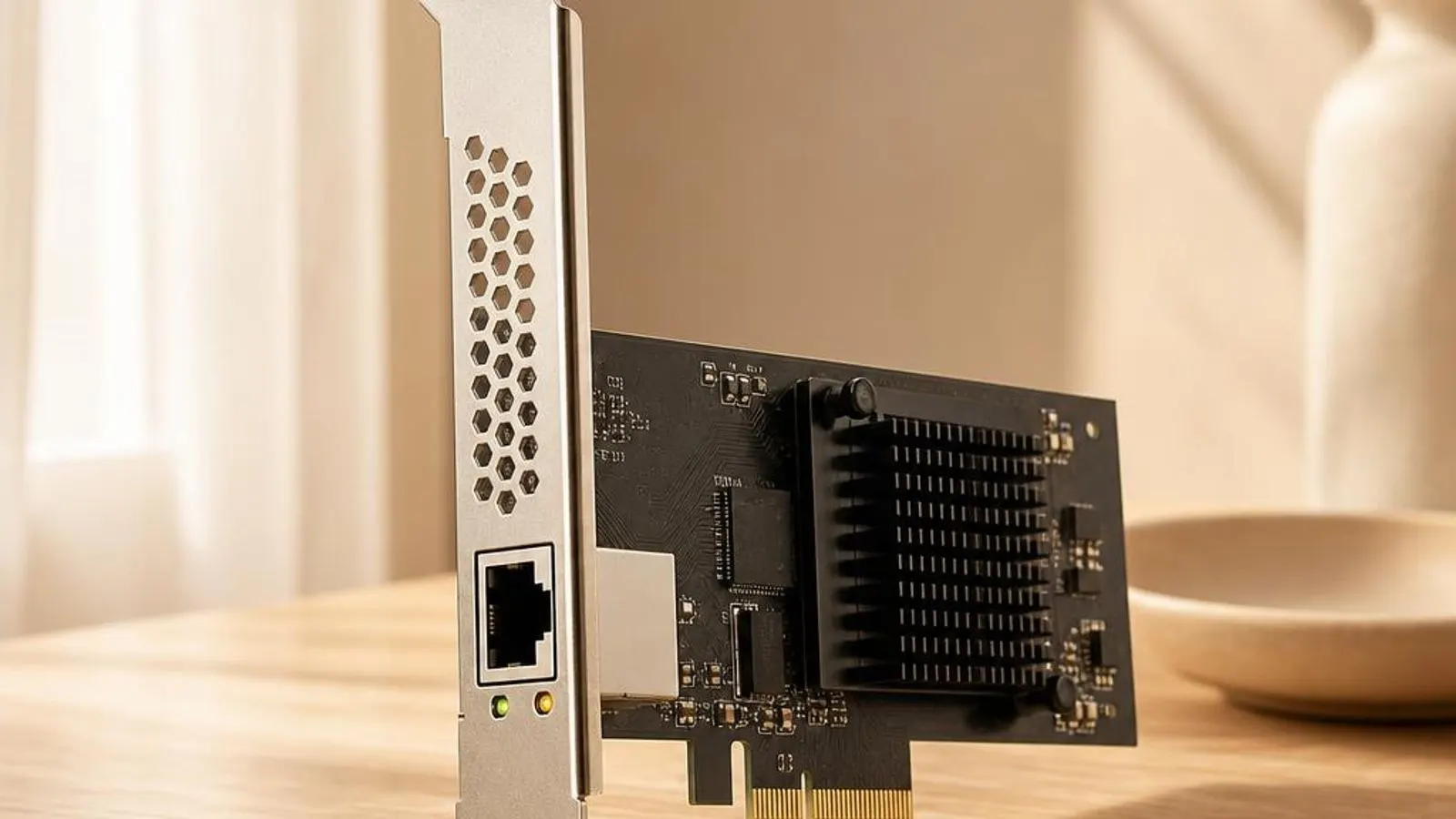
A network adapter driver is written to the Network Driver Interface Specification, so Windows always calls it as an NDIS miniport no matter what silicon is underneath. This is the abstraction that lets the same TCP/IP stack ride over a wired controller, a wireless card, a cellular modem, or a virtual switch. The miniport presents send and receive rings to the operating system and moves frames between those rings and the hardware's DMA buffers.
Much of the driver's value is in hardware offloads that keep the processor free. It advertises checksum offload so the adapter computes IP, TCP, and UDP checksums instead of the CPU, and large send offload, or TCP segmentation offload, so a big buffer is chopped into wire-sized segments by the hardware. Receive Side Scaling spreads incoming interrupts across processor cores so a fast link does not saturate a single core.
Compatibility is model-specific
A driver is associated with hardware identifiers, an operating-system driver model, and a processor architecture. Devices in the same category can expose different controllers, firmware interfaces, and optional feature layers, so a category name alone does not establish package compatibility.
Where this driver fits in Windows
The network adapter driver sits between Windows, the applications you use, and the physical hardware. This layered view shows where the driver translates operating-system requests into device actions.
Observable network adapter device states
These observations can involve hardware, firmware, operating-system services, applications, or a driver. They are descriptive rather than diagnostic.
- Throughput starts high then collapses during long transfers because a broken large-send offload corrupts TCP segments
- The network adapter vanishes from Device Manager under heavy load, then reappears after a disable and enable cycle
- Windows shows Code 31 after a feature update because the miniport was built against an older NDIS version
- Wake-on-LAN no longer wakes the machine, since the driver failed to arm the magic-packet pattern before sleep
- A VPN or virtual switch that binds above the adapter breaks all connectivity until the binding is removed
- High CPU usage on one core during downloads because Receive Side Scaling failed to spread interrupts across cores