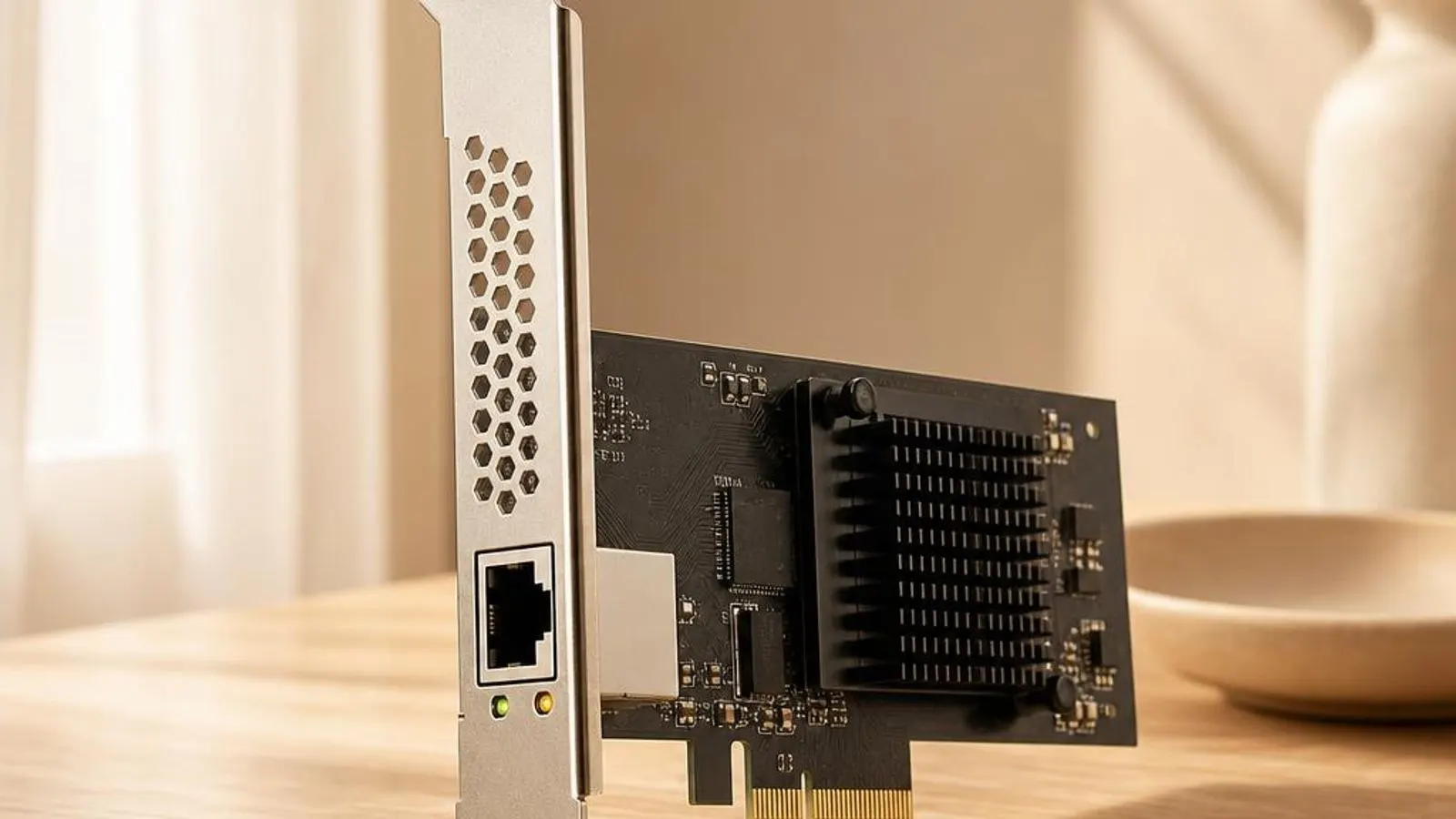
What this driver does
A network adapter driver is written to the Network Driver Interface Specification, so Windows always calls it as an NDIS miniport no matter what silicon is underneath. This is the abstraction that lets the same TCP/IP stack ride over a wired controller, a wireless card, a cellular modem, or a virtual switch. The miniport presents send and receive rings to the operating system and moves frames between those rings and the hardware's DMA buffers. Much of the driver's value is in hardware offloads that keep the processor free. It advertises checksum offload so the adapter computes IP, TCP, and UDP checksums instead of the CPU, and large send offload, or TCP segmentation offload, so a big buffer is chopped into wire-sized segments by the hardware. Receive Side Scaling spreads incoming interrupts across processor cores so a fast link does not saturate a single core. The driver also governs how interrupts and buffers are managed. Interrupt moderation batches completions so the adapter raises fewer, larger interrupts under load, trading a little latency for far less CPU overhead. Receive and transmit descriptor counts, jumbo-frame support, and flow control are all knobs the driver exposes so the adapter matches the demands placed on it. Binding is the last piece. Above the miniport, Windows binds protocol drivers, filter drivers, and services: the TCP/IP stack, the QoS packet scheduler, and any VPN or virtualisation filters. The network adapter driver reports its capabilities upward so these layers negotiate what they can use. A stale or mismatched driver often shows up not as a dead link but as an offload negotiated wrongly, so packets are silently corrupted or dropped under load.
Why updating matters
Network adapters carry more logic in software than their small size suggests, so their drivers are revised to fix subtle data-path bugs. A common example is a broken large-send offload that works at idle but corrupts segments under sustained transfer, producing retransmissions that halve throughput. These regressions are fixed in driver updates, and running a current build is how the corrected offload logic reaches your adapter. Stability is the second reason. Because the miniport runs in kernel space, a defect in its interrupt or DMA handling can bug-check the whole system, and disappearing-adapter faults where the device drops out under load are almost always driver issues rather than hardware failure. Updated builds tighten the interrupt-moderation and descriptor handling that cause those drop-outs. Compatibility with the rest of the stack also drifts. VPN clients, virtualisation platforms, and security filters all bind above the miniport, and a change in how one of them hooks the data path can expose an old driver's assumptions. Keeping the adapter driver current reduces the odd interactions where a VPN or a virtual switch breaks connectivity only on a particular machine. Finally, Windows periodically revises the NDIS version and its power-management contract. A driver built against an older NDIS can fail to start with Code 31 after a feature update, or leave the adapter unable to wake the machine on a magic packet. Matching the driver to the operating system keeps offloads, wake-on-LAN, and power states behaving as designed.
Signs a driver may be failing
- Throughput starts high then collapses during long transfers because a broken large-send offload corrupts TCP segments
- The network adapter vanishes from Device Manager under heavy load, then reappears after a disable and enable cycle
- Windows shows Code 31 after a feature update because the miniport was built against an older NDIS version
- Wake-on-LAN no longer wakes the machine, since the driver failed to arm the magic-packet pattern before sleep
- A VPN or virtual switch that binds above the adapter breaks all connectivity until the binding is removed
- High CPU usage on one core during downloads because Receive Side Scaling failed to spread interrupts across cores
How it fits into the OS stack
Drivers operate in the background, serving as translators. Here is where the Network adapter driver sits between your apps and the hardware.
Distribution comparison
Before you start
"Only install drivers from your operating system's update tool or the manufacturer's official support page."
Where this driver comes from
Drivers for Network adapter driver typically reach your PC through one of three routes: shipped natively with the Windows operating system, delivered dynamically through system updates, or published directly by the hardware manufacturer for your specific model.
To ensure system stability, always allow your OS to handle baseline generic drivers. If you are experiencing performance issues or require advanced control panels, identify the exact model of your hardware and consult the device manufacturer's dedicated support resources.
Fixing installation problems
Cycle the adapter to clear a wedged data path
In Device Manager, expand Network adapters, right-click the adapter, choose Disable device, wait a moment, then Enable device. This re-initialises the miniport's descriptor rings and clears a state where the adapter has dropped out under load.
Disable a suspect hardware offload
On the adapter's Advanced tab, temporarily turn off Large Send Offload or TCP checksum offload, then re-test a long transfer. If throughput stops collapsing, the offload was corrupting segments and a driver update is the proper fix.
Reset the protocol stack above the miniport
Run netsh winsock reset and netsh int ip reset from an elevated prompt, then reboot. This rebuilds the Winsock catalogue and TCP/IP bindings that a misbehaving VPN or filter driver can leave in a broken state.
Reinstall the miniport driver cleanly
Right-click the adapter, choose Uninstall device, tick 'Attempt to remove the driver for this device', and reboot. Windows reinstalls a fresh miniport, clearing corrupted registry keys that trigger Code 31 or offload faults.
Look for a newer build in Windows Update
In Settings, open Windows Update, then Advanced options, then Optional updates, and expand Driver updates. Install any newer network adapter build offered for your device, reboot, and re-test throughput and stability under sustained load.
How to uninstall or rollback
Step 1
Step 2
Step 3
Step 4
Step 5
Safety Warning
The NDIS miniport model
The reason Windows treats wired, wireless, cellular, and virtual adapters so uniformly is the NDIS miniport model. Every network adapter driver implements the same miniport interface, so the operating system issues the same calls to send a frame, receive a frame, or query a statistic regardless of the hardware beneath. The driver's job is to translate those generic calls into the specific register writes and DMA operations the silicon understands. This layering brings a clean division of labour. The miniport owns the hardware; above it, protocol drivers such as TCP/IP, filter drivers such as VPN and firewall hooks, and the QoS scheduler all bind through NDIS without knowing anything about the physical adapter. That is powerful, but it also means a fault can hide anywhere in the stack, and separating a miniport fault from a protocol-layer fault is the first troubleshooting step. Because the miniport runs in kernel mode, its quality directly affects system stability. A defect in how it handles a DMA descriptor or an interrupt does not just drop a packet; it can bug-check the machine. This is why network adapter drivers are certified carefully and why a mismatched build so often appears as an intermittent crash or a device that vanishes under load rather than a clean, obvious failure.
Hardware offloads and why they help
Modern adapters do far more than shuttle bytes; they offload work the CPU would otherwise do. Checksum offload lets the adapter compute and verify the IP, TCP, and UDP checksums, saving the processor a per-packet calculation. Large send offload, sometimes called TCP segmentation offload, lets software hand the adapter one big buffer that the hardware slices into wire-sized segments, cutting the number of trips through the stack. On the receive side, Receive Side Scaling is the key feature on fast links. Without it, every incoming interrupt lands on one core, which becomes a bottleneck at gigabit and multi-gigabit rates. With it, the adapter hashes flows and spreads their interrupts across cores, so throughput scales with the processor. Interrupt moderation complements this by batching completions to reduce interrupt overhead under load. These features are only as good as the driver that advertises and configures them. When an offload is buggy, the warning sign is deceptive: everything works at idle, then throughput collapses under sustained load as corrupted segments trigger retransmissions. That is why the standard check is to disable one offload, confirm the problem clears, and then update the driver so the offload can be safely turned back on.
Bindings, filters, and the wider stack
A network adapter never works alone. Above its miniport, Windows binds a chain of components: the TCP/IP protocol driver, the QoS packet scheduler, client and file-sharing services, and any number of filter drivers from VPNs, firewalls, and virtualisation platforms. Each of these attaches through NDIS, and the order and health of those bindings decide whether traffic flows. This stacking is where many machine-specific network mysteries live. A VPN client installs a lightweight filter that intercepts frames on their way through the miniport, and if that filter's assumptions clash with an older adapter driver, connectivity can break entirely even though the hardware is fine. The same is true of virtual switches, which insert themselves between the physical adapter and the operating system. Troubleshooting these problems means thinking about the whole chain. Resetting Winsock and the IP stack rebuilds the protocol bindings; updating both the filter software and the adapter driver aligns their expectations. When a network problem appears only on one machine with a particular VPN or virtualisation stack, the fault is almost always in this binding chain rather than in the adapter itself.
Where this driver comes from
A network adapter driver reaches your PC by one of three routes, and knowing which you are running clarifies every fix. The first route is the driver that ships with Windows. Microsoft includes inbox miniport drivers for the most common adapters, so a fresh install has working networking immediately. These inbox builds are dependable but plain, typically exposing fewer offload and tuning options than the vendor equivalent. The second route is delivery through system updates. Windows Update ships signed, certified miniport drivers as part of servicing and via the Optional updates, Driver updates list. Because the miniport is a kernel component, that certification is a genuine safeguard, and this route is how most systems stay current without anyone downloading anything by hand. Its weakness is timing: it trails the newest data-path fixes and may prefer a generic build over the vendor one. The third route is the driver the hardware maker publishes for a specific model. The vendor tunes the miniport to that adapter's DMA layout, interrupt design, and offload engines, and posts it on the support page for that exact model or system. This is the build to prefer when a data-path issue appears, because a generic driver may negotiate an offload wrongly. All three routes are legitimate; they differ in how current, how specific, and how richly featured the driver is.
A structured way to troubleshoot adapter faults
Because the network stack is layered, the fastest troubleshooting method follows those layers. Begin at the miniport: is the adapter present and started, or does it show Code 31 or vanish under load? A missing or Code 31 device is a driver-and-hardware problem, fixed by a clean reinstall or a build matched to your Windows version, not by fiddling with TCP/IP settings. If the adapter is healthy but performance is wrong, move to the offloads. Run a sustained transfer, not a quick ping, because offload corruption only shows under load. If throughput collapses over time, disable one offload at a time to find the culprit, then update the driver so you can re-enable it. If one CPU core is pinned while others idle, Receive Side Scaling is the setting to check. If the adapter and offloads are fine but connectivity still breaks, look above the miniport at the bindings. Reset Winsock and the IP stack, and update any VPN, firewall, or virtualisation filter. Working the layers in this order, and changing one thing at a time, turns an intermittent and confusing network problem into a specific cause you can fix and confirm.
