What this driver does
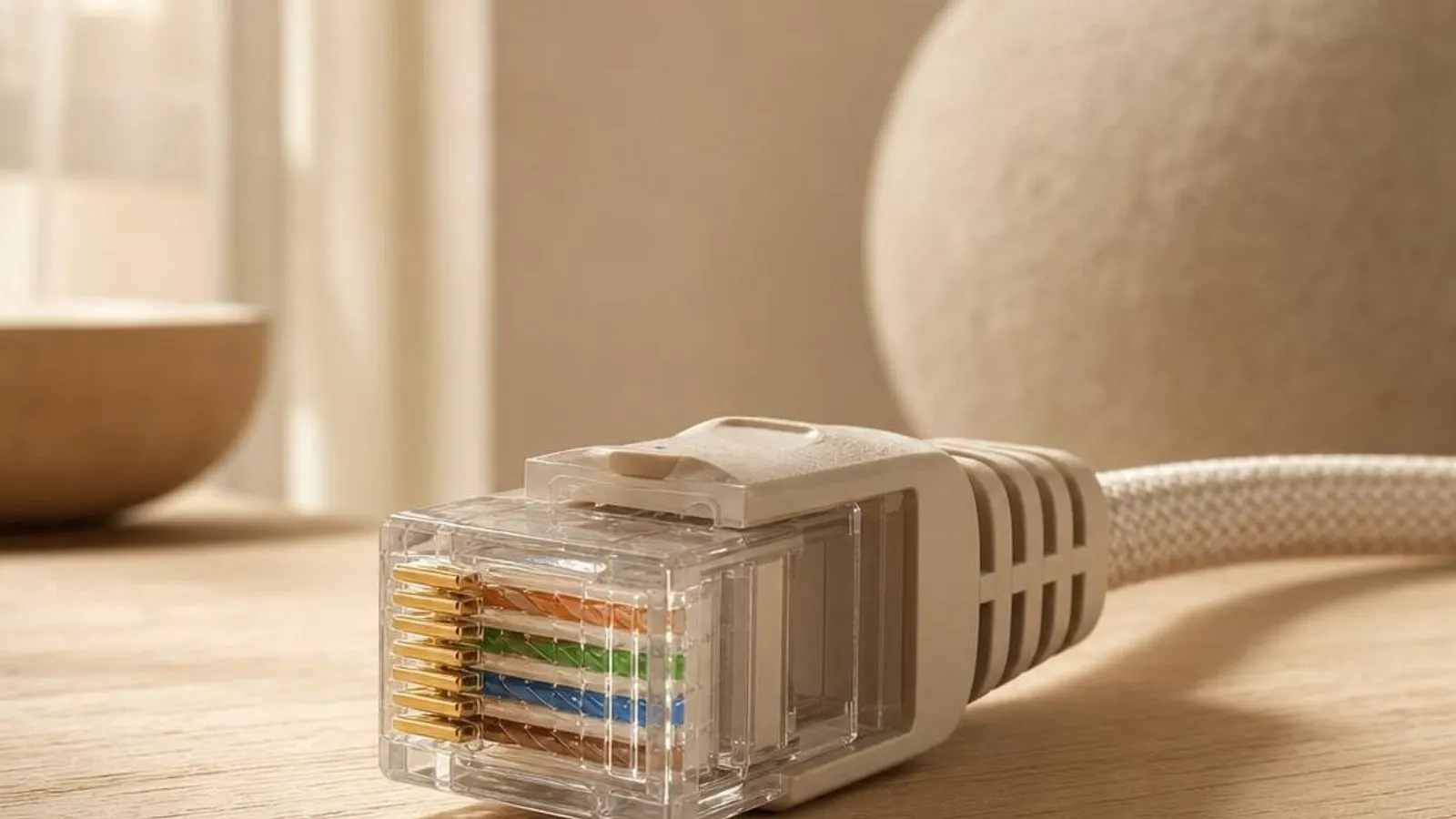
An Ethernet LAN driver operates two closely linked blocks on your wired controller: the Media Access Control layer, which frames and schedules packets, and the physical-layer transceiver, or PHY, which turns those frames into the electrical signalling that travels down the twisted pairs of an RJ45 cable. The driver programs the MAC's descriptor rings for DMA and configures the PHY registers that decide how the link behaves. Auto-negotiation is the first thing the driver arranges when a cable is plugged in. The PHY exchanges capability pages with the switch or router to agree the highest common speed, whether 10, 100, 1000, or on newer parts 2.5 gigabit, and the duplex mode. It also negotiates the MDI or MDI-X crossover so a straight cable works either way. If negotiation is forced to a fixed value on one end only, the result is a duplex mismatch that quietly wrecks throughput. The driver also manages power and flow features specific to wired links. Energy-Efficient Ethernet lets the PHY drop into a low-power idle between packets, saving energy on quiet links but occasionally causing tiny stalls with fussy switches. Pause-frame flow control lets a congested receiver ask the sender to hold off briefly, and the driver decides whether to advertise and honour it. Wake-on-LAN and link testing round out the picture. The driver arms the controller to watch for a magic packet or link change while the PC sleeps, keeping just enough of the MAC and PHY powered to trigger a wake. Many controllers also expose a cable test through the driver, which measures each pair's length and flags an open or short, turning a vague 'no link' complaint into a specific cable fault.
Why updating matters
A wired link feels simple, but the driver hides a surprising amount of negotiation and power logic that gets refined over time. A frequent fix concerns Energy-Efficient Ethernet: some driver builds enable it too aggressively for a given switch, and the low-power idle transitions cause brief drops or a link that flaps between speeds. Updated drivers ship better EEE defaults, and running one is how that improved behaviour reaches your controller. Speed and duplex handling is the second reason. A stale driver can misread a switch's negotiation pages and train the link at 100 Mbps when the cabling supports gigabit, or settle on half duplex, which cripples throughput and floods the port with collisions. Refreshed builds correct the auto-negotiation state machine so the link reaches the speed the hardware and cable can actually sustain. Stability matters because the controller runs in kernel space. A defect in the driver's descriptor or interrupt handling can drop the adapter under sustained load or bug-check the system, and these faults are fixed in software rather than by replacing a perfectly good controller. Keeping the driver current is the cheapest way to rule out the most common cause of wired drop-outs. Finally, Windows changes its power and wake contract between releases. A driver written for an older behaviour can break wake-on-LAN after a feature update, or fail to start with Code 10 because it programmed a register the new operating system no longer expects. Matching the Ethernet driver to the current Windows version keeps link training, EEE, and wake-on-LAN aligned with what the system asks for.
Signs a driver may be failing
- The wired link trains at 100 Mbps despite gigabit-capable cabling because auto-negotiation settled on the wrong speed
- Throughput is poor and the switch port logs collisions, a classic sign of a half-duplex mismatch on the link
- The connection flaps or drops briefly on a quiet network when Energy-Efficient Ethernet enters low-power idle
- Wake-on-LAN stopped waking the PC because the driver no longer arms the magic-packet pattern before sleep
- The Ethernet controller shows Code 10 and cannot start after a Windows feature update changed its power contract
- Large transfers stall under load as the controller drops out and only recovers after a disable and enable cycle
How it fits into the OS stack
Drivers operate in the background, serving as translators. Here is where the Ethernet LAN driver sits between your apps and the hardware.
Distribution comparison
Before you start
"Only install drivers from your operating system's update tool or the manufacturer's official support page."
Where this driver comes from
Drivers for Ethernet LAN driver typically reach your PC through one of three routes: shipped natively with the Windows operating system, delivered dynamically through system updates, or published directly by the hardware manufacturer for your specific model.
To ensure system stability, always allow your OS to handle baseline generic drivers. If you are experiencing performance issues or require advanced control panels, identify the exact model of your hardware and consult the device manufacturer's dedicated support resources.
Fixing installation problems
Force a clean re-negotiation of the link
In Device Manager, expand Network adapters, right-click the Ethernet controller, choose Disable device, wait a moment, then Enable device. This drops and re-trains the link so a stuck speed or duplex agreement is renegotiated from scratch.
Set speed and duplex explicitly if negotiation misbehaves
On the Advanced tab, find Speed & Duplex. Leave it on auto-negotiation normally, but if the link keeps training wrong, set it to match the switch port exactly, since a one-sided forced setting is what creates duplex mismatches.
Disable Energy-Efficient Ethernet to stop link flapping
On the Advanced tab, turn off Energy-Efficient Ethernet, and any Green Ethernet or EEE option, then re-test. If the drops on a quiet network stop, an aggressive low-power idle was the cause and a driver update usually restores it safely.
Reinstall the controller driver cleanly
Right-click the controller, choose Uninstall device, tick 'Attempt to remove the driver for this device', and reboot. Windows reinstalls a fresh driver, clearing corrupted registry keys behind a Code 10 or a controller that drops under load.
Check Windows Update for a newer wired build
In Settings, open Windows Update, then Advanced options, then Optional updates, and expand Driver updates. Install any newer Ethernet build offered for your controller, reboot, and confirm the link speed, duplex, and wake-on-LAN behaviour.
How to uninstall or rollback
Step 1
Step 2
Step 3
Step 4
Step 5
Safety Warning
MAC and PHY: the two halves of a wired link
Every wired controller splits into two cooperating blocks that the driver programs together. The Media Access Control block builds and schedules Ethernet frames, handles the DMA descriptor rings that move data to and from memory, and enforces the rules for putting frames on the wire. It is the digital half, and it is where offloads and buffering live. The physical-layer transceiver, the PHY, is the analogue half. It converts frames into the precise electrical signalling that travels along the four twisted pairs of an RJ45 cable, and it recovers the signal coming the other way. The PHY holds the registers that control speed, duplex, and the MDI or MDI-X crossover, and the driver reads and writes those registers to steer the link. Understanding this split makes wired faults easier to reason about. A speed or duplex problem lives in the PHY negotiation the driver drives; a throughput collapse under load or a device that vanishes points at the MAC's descriptor and interrupt handling. Cable faults sit below the PHY entirely, which is why the controller's cable-test feature, reported up through the driver, is such a useful first check.
Auto-negotiation, speed, and duplex
When you plug in a cable, the PHYs at each end run auto-negotiation, exchanging capability pages to agree the best link both can support. They settle on the highest common speed, choose full duplex where possible, and sort out the crossover so a straight cable works regardless of orientation. Done properly this is invisible, and the link simply comes up at its best rate. Problems appear when negotiation is disturbed. If one end is manually forced to a fixed speed and duplex while the other auto-negotiates, the auto side cannot detect the peer's duplex and defaults to half duplex, creating a mismatch. The link technically works but throughput is dire and the switch logs collisions, which is the classic fingerprint of this fault. The driver is central because it implements the negotiation state machine and exposes the Speed & Duplex control. The right default is nearly always auto-negotiation on both ends. Forcing a value should be reserved for a switch that genuinely demands it, and then both ends must be set identically. A driver update often fixes cases where the negotiation logic misread a particular switch and trained the link too slowly.
Energy-Efficient Ethernet, flow control, and wake-on-LAN
Wired controllers carry several features that the driver must balance. Energy-Efficient Ethernet lets the PHY drop into a low-power idle between packets, cutting energy on a mostly quiet link. The saving is real, but the transitions in and out of idle can upset some switches, and the visible sign is a link that flaps or drops briefly when the network is not busy. Flow control uses pause frames so a receiver whose buffers are filling can ask the sender to pause for a short interval, smoothing bursts without dropping frames. The driver decides whether to advertise and honour pause frames, and a mismatch with the switch can either leave congestion unmanaged or introduce head-of-line stalls, so it is worth checking when a link behaves oddly under bursty load. Wake-on-LAN lets the controller wake the PC from sleep when it sees a magic packet or a link event. The driver arms the pattern and keeps just enough of the MAC and PHY powered to notice it, so a driver change that clears the setting silently breaks remote wake. Because these three features all depend on the driver's power handling, a build matched to your Windows version keeps them working together rather than fighting each other.
Where this driver comes from
An Ethernet LAN driver reaches your PC by one of three routes, and identifying which you have makes wired troubleshooting far more direct. The first route is the driver that ships with Windows. Microsoft bundles inbox drivers for the common gigabit controllers, so a fresh install has a working wired link straight away. These inbox builds are reliable but plain, and they sometimes cap newer multi-gigabit parts at gigabit or expose few EEE controls. The second route is delivery through system updates. Windows Update ships signed, certified Ethernet drivers as part of servicing and through the Optional updates, Driver updates list. For a kernel-mode wired controller that certification is meaningful, and this is how most machines quietly stay current. The limitation is timing and specificity: it trails the newest negotiation and EEE fixes and may prefer a generic driver over the vendor one. The third route is the board-specific build from your motherboard or laptop maker, which matches the build to that exact controller and PHY, including its multi-gigabit and wake-on-LAN behaviour, and posts it on the support page for that model. This is the build to prefer when a wired issue points at speed, duplex, or EEE, because a generic driver may negotiate the link poorly. Each wired-driver route is valid; what varies is how quickly negotiation and EEE fixes reach you and how closely the build matches your controller and PHY.
Troubleshooting a wired connection methodically
Wired faults are among the most straightforward to troubleshoot because the link is deterministic. Start with the physical layer: confirm the cable is seated at both ends, try a known-good Cat5e or Cat6 lead, and run the controller's cable test through the driver to rule out an open or short before touching software. A surprising share of 'the network card is broken' cases are a tired patch lead. Next, read the link that actually formed. Check the negotiated speed and duplex rather than trusting the tray icon. A gigabit-capable path stuck at 100 Mbps points at negotiation or cabling; poor throughput with collisions points squarely at a half-duplex mismatch. Cycling the adapter forces a fresh negotiation, and setting both ends to auto is usually the correct fix. Finally, separate driver faults from feature quirks. A controller showing Code 10, or one that drops out under sustained load, is a driver-and-hardware problem addressed by a clean reinstall or a build matched to Windows. A link that flaps only when idle is Energy-Efficient Ethernet; a broken remote wake is the wake-on-LAN setting. Matching the warning sign to the layer, and changing one thing at a time, resolves wired problems quickly and repeatably.
