Cover image for laptop-vs-desktop-drivers-why-oem-matters guide

Laptop vs Desktop Drivers: Why OEM Matters

Laptop hardware often needs OEM-customized drivers, not generic ones. Why the same chip behaves differently in portables and what to install.

By Sarah Jenkins Updated 2024-03-01Reviewer: author-1 (2024-05-11)

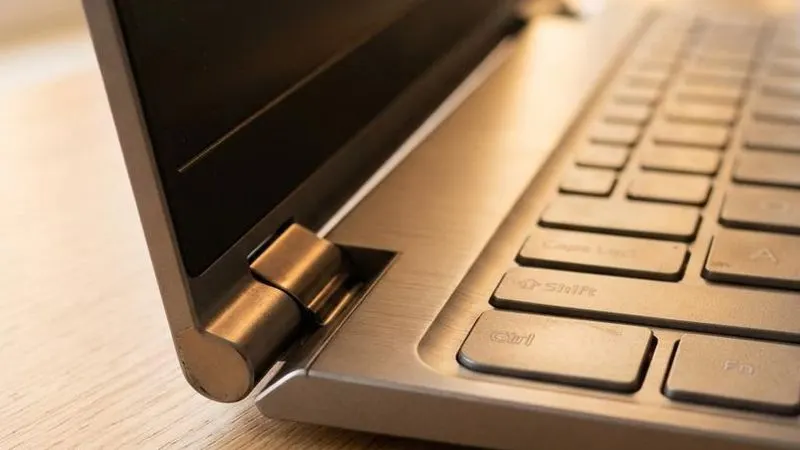
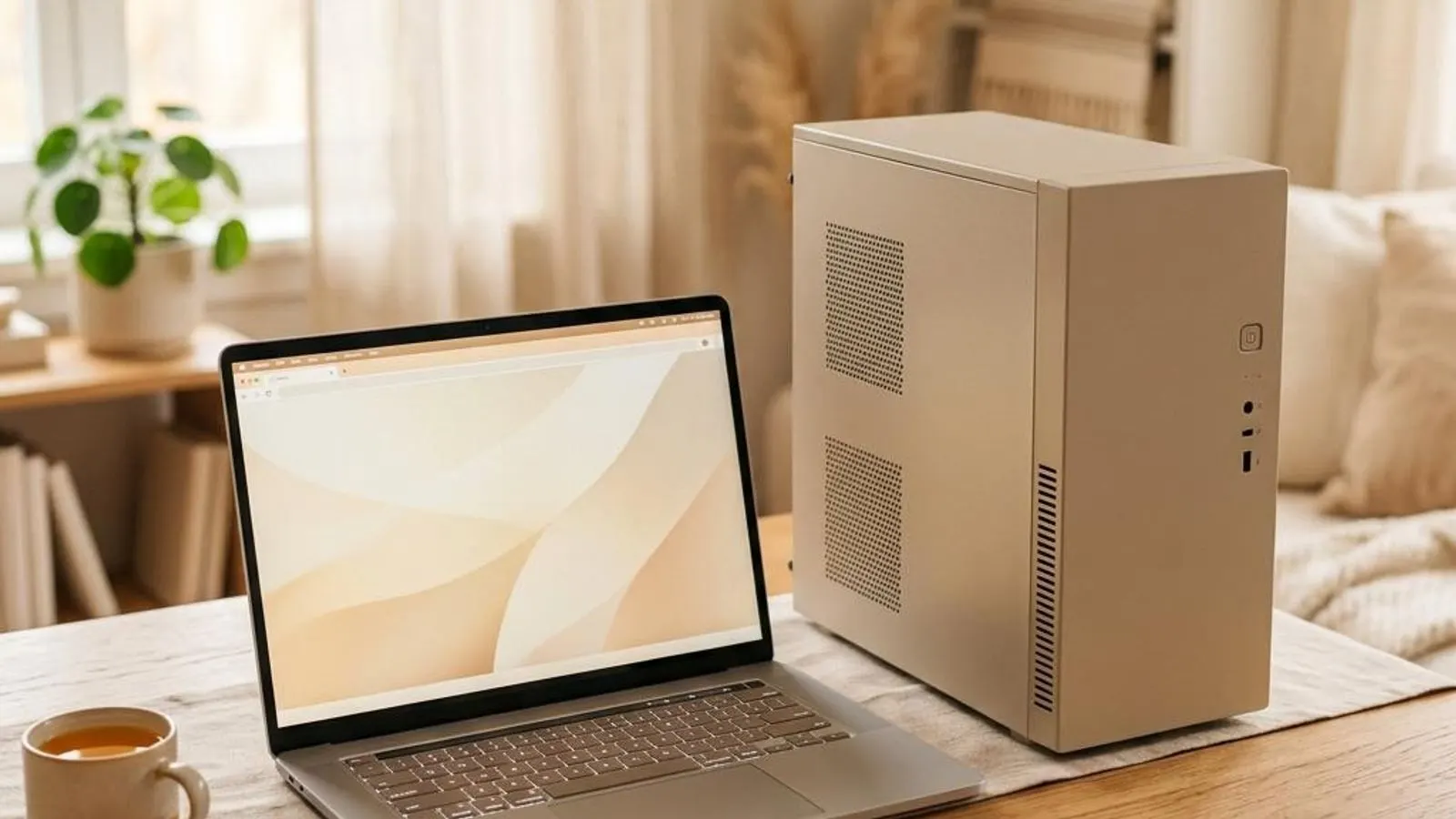
The same graphics or audio chip can sit in a desktop tower and a slim laptop, yet the drivers they need often differ. Laptop makers tune drivers for their specific chassis: battery-aware power profiles, function-key shortcuts, and the switching between an integrated and a discrete GPU. Install a generic version and those extras can quietly stop working. Understanding why portable hardware behaves differently helps you pick the right driver the first time. You'll learn what OEM customizations do, which laptop features generic drivers break, and the safest order to try when updating.

  1. 1

    See why the same chip behaves differently

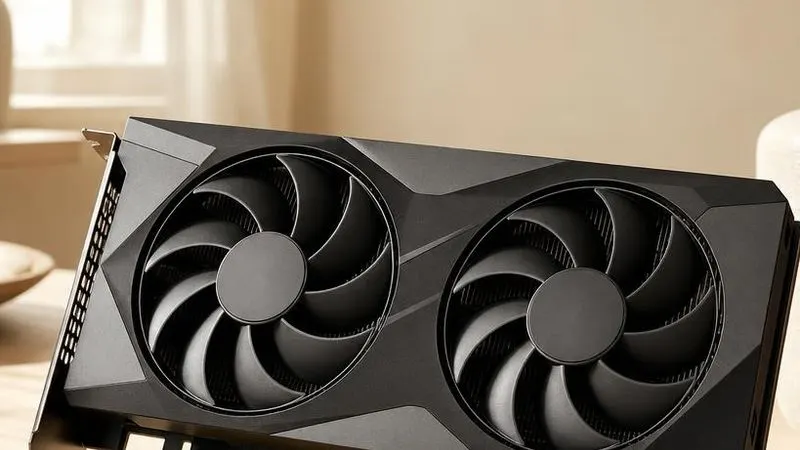
    A chip on a desktop card runs in a roomy case with strong cooling and steady wall power. The identical chip in a laptop lives in a thin shell, shares heat with everything nearby, and often runs on battery. Laptop makers respond by tuning the driver's firmware settings, thermal limits, and power behavior for that exact chassis. So while the silicon is the same, the driver wrapped around it isn't. That's the core reason a generic driver built for the reference design can misbehave in a portable: it doesn't know the machine's specific thermal and power boundaries.

  2. 2

    Learn what OEM customizations add

    OEM laptop drivers bundle behavior generic versions leave out. They include power profiles that scale performance up on AC and dial it back on battery to protect runtime. They wire up the function-key shortcuts for brightness, volume, keyboard backlight, and airplane mode. On machines with two GPUs, they manage hybrid graphics, quietly handing tasks to the integrated chip to save power and waking the discrete one for demanding apps. Fan curves, display panel calibration, and sleep behavior are often tuned here too. These touches are why the laptop feels finished rather than merely functional.

  3. 3

    Recognize when generic drivers break features

    The warning signs are consistent. Function keys stop adjusting brightness or volume. The battery drains faster because power scaling reverted to a desktop-style always-on profile. Games or apps run on the wrong GPU, or the discrete chip never spins up. External displays behave oddly, or the screen won't dim on battery. Sometimes a feature just vanishes with no error at all. If a fresh generic driver made any of these appear, that's a strong hint the OEM customization got overwritten. Generic packages install the base hardware support but skip the laptop-specific layer that made those extras work.

  4. 4

    Identify your exact laptop model

    OEM drivers are matched to a specific model, so identify yours precisely before hunting. Right-click the Start button, choose Run, type msinfo32, and press Enter; System Information shows the System Manufacturer and System Model. Note both, along with any service tag or serial number printed on the underside of the laptop, since maker support pages often look up drivers by that identifier. Getting the exact model matters because a driver for a near-identical variant may lack your machine's particular tuning. With the right model in hand, you can head straight to that laptop maker's official support page.

  5. 5

    Prefer the laptop maker's drivers first

    For a portable, the right first choice is almost always the laptop maker's own driver package for your exact model, from their official support page. These are the versions with all the power, hotkey, and hybrid-graphics tuning baked in. Chip makers' generic drivers can be newer, and they're tempting when you want the latest version, but on a laptop they may strip the OEM layer and break features. Start with the OEM driver, confirm everything works, and only consider a generic version if you have a specific reason and know how to recover if features disappear.

  6. 6

    Protect yourself before updating

    Whichever driver you try, give yourself a way back. In the Start search box, type "Create a restore point," open it, confirm protection is on for the system drive, and click Create with a clear name. This matters more on laptops because a driver that breaks power management or the discrete GPU can be genuinely disruptive to daily use. With a restore point ready, you can undo a bad choice quickly. Note your current working driver version from Device Manager too, so you know exactly what to reinstall if you decide to revert.

  7. 7

    Follow the right order to try drivers

    Work from safest to riskiest. First, install the chipset and platform drivers from the laptop maker for your model, since these lay the groundwork. Next, install the maker's graphics, audio, and networking drivers, plus any companion utility app that manages hotkeys and power. Reboot and test the function keys, battery behavior, and GPU switching. Only if you have a concrete need for a newer generic driver should you consider one, and even then keep the OEM utilities installed alongside it where the vendor allows. Test after each stage so you know which step caused any change.

Related Drivers