What this driver does
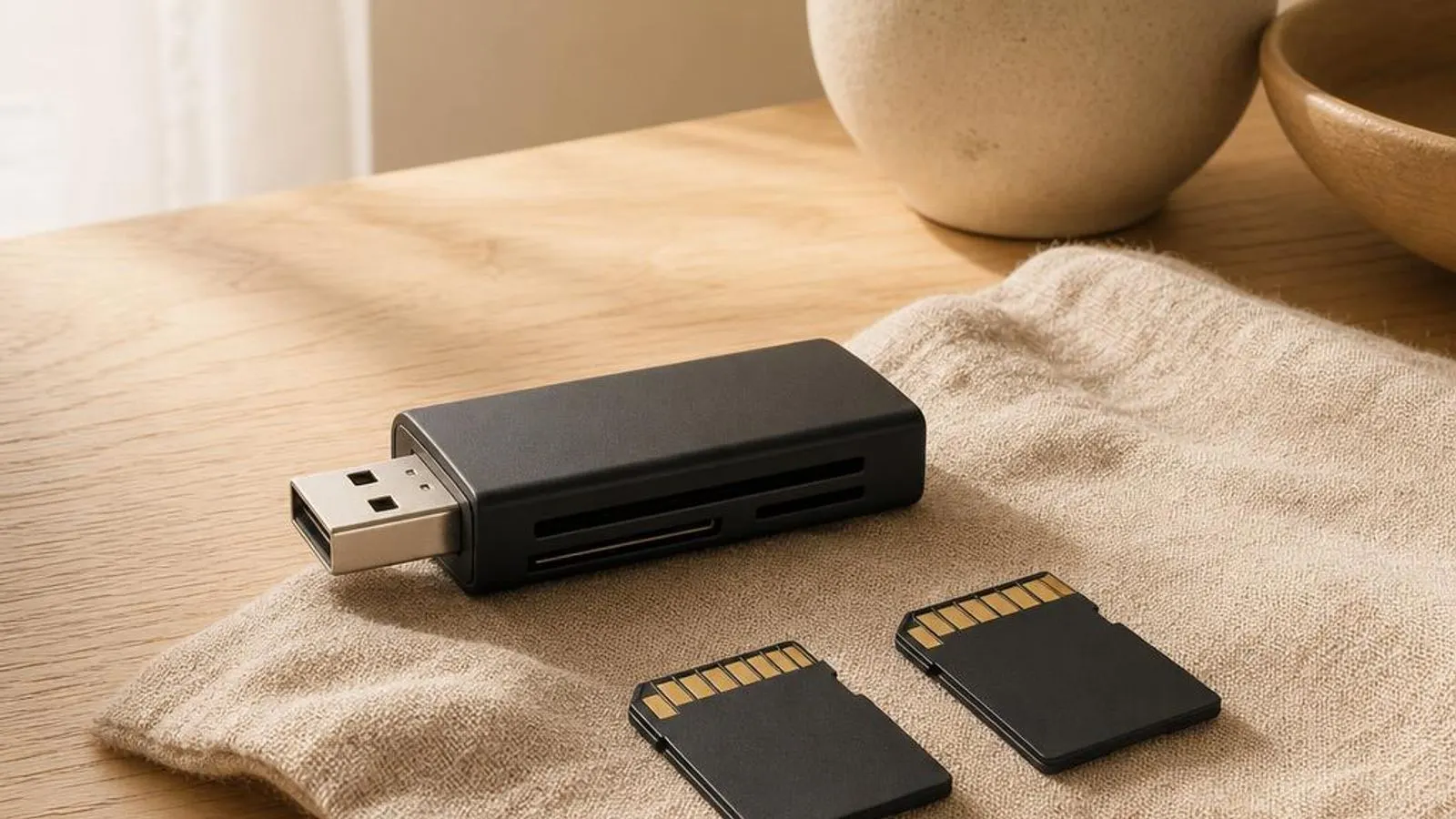
An SD card reader is not simple storage; it is a host controller that implements the SD Association's electrical and command protocol on one side and presents a standard removable disk to Windows on the other. On laptops the controller is typically a Realtek or Genesys part reached over PCIe or an internal USB link, and the driver is what lets Windows enumerate it, detect card insertion, and read and write blocks. Without a matching driver the reader either does not appear at all or shows as an unknown device. The first real job is identifying the card and negotiating the bus. When a card is inserted, the controller runs the SD initialisation handshake to learn the card type, SDSC, SDHC, or SDXC, its capacity, and the speed modes it supports. The driver then selects a bus width and clock: default speed, high speed, or a UHS-I mode such as SDR104. A mismatch here is exactly why a fast UHS-I card can end up capped at old high-speed rates. Capacity and file system are the next concern. SDHC cards top out at 32 GB and are usually FAT32, while SDXC cards run to 2 TB and ship formatted as exFAT. The reader itself is agnostic, but the driver and Windows must present the card so the correct file system mounts; a card that suddenly 'needs formatting' is often a file-system or partition problem the driver is faithfully reporting, not card death. Finally the driver handles the removable-media lifecycle: signalling arrival and removal, respecting the physical write-protect switch on full-size SD cards, and cooperating with Windows removal policy so buffers flush before a card is pulled. It surfaces the card in File Explorer and Disk Management and passes through the wear-levelling and error handling the card's own controller performs, since an SD card is itself a tiny flash device.
Why updating matters
Card reader drivers are unglamorous but they decide whether a reader works at all and how fast. A refreshed Realtek or Genesys driver frequently restores a reader that vanished after a Windows feature update, because the OS servicing changed the internal USB or PCIe enumeration the older driver assumed. Reappearance after a driver refresh is one of the most common resolutions for a missing reader. Speed and mode support improve with updates. Support for UHS-I modes such as SDR104, correct clock negotiation, and the higher UHS-II pin layout on the readers that offer it all depend on driver logic; an outdated build can silently drop a fast card to a slow mode. Where a reader is capable of more than default speed, a current driver is what unlocks it. Stability and power behaviour are addressed too. Selective suspend on the reader's USB or PCIe link can cut power at the wrong moment and interrupt a transfer, corrupting a file mid-copy, and driver revisions tune that timing. Updates also fix hot-insertion races where a card mounts, unmounts, and remounts in quick succession because arrival events were mishandled. The driver arrives in-box or through Windows Update for most readers, and as a Realtek or Genesys package on your laptop maker's support page for the exact model when the generic driver underperforms. Because the reader is often an internal USB device, keeping the chipset and USB drivers current matters as much as the reader driver itself.
Signs a driver may be failing
- The SD card reader is absent from File Explorer and shows no controller or an unknown device in Device Manager
- An inserted card prompts 'You need to format the disk before you can use it' even though it holds data
- A UHS-I card that should exceed 90 MB/s is capped near 20 MB/s at legacy high-speed rates
- Large file copies to a card fail or corrupt partway as USB selective suspend cuts power to the reader
- A full-size SD card mounts read-only because the physical write-protect switch is set or misread
- The reader mounts and unmounts a card repeatedly on insertion due to a hot-insertion detection race
How it fits into the OS stack
Drivers operate in the background, serving as translators. Here is where the Card reader driver sits between your apps and the hardware.
Distribution comparison
Before you start
"Only install drivers from your operating system's update tool or the manufacturer's official support page."
Where this driver comes from
Drivers for Card reader driver typically reach your PC through one of three routes: shipped natively with the Windows operating system, delivered dynamically through system updates, or published directly by the hardware manufacturer for your specific model.
To ensure system stability, always allow your OS to handle baseline generic drivers. If you are experiencing performance issues or require advanced control panels, identify the exact model of your hardware and consult the device manufacturer's dedicated support resources.
Fixing installation problems
Locate the reader in Device Manager
Open Device Manager and look under Memory technology devices and under Universal Serial Bus controllers, since internal readers often appear as USB devices. A yellow triangle or missing entry tells you whether this is a driver problem or the controller not being detected at all.
Reinstall the matched reader driver
Uninstall the SD host controller entry, reboot, and let Windows redetect it, or install the Realtek or Genesys package listed for your laptop model. Matching the driver to the silicon is what restores a reader that vanished after a Windows feature update.
Disable selective suspend for the reader
If copies fail partway, open the reader's USB root hub in Device Manager, go to Power Management, and clear 'Allow the computer to turn off this device to save power'. This stops the link losing power mid-transfer and corrupting a large file.
Fix a 'needs formatting' card without data loss first
Before formatting, run chkdsk on the card's drive letter to repair a damaged file system, and try data-recovery software if files matter. Only if the card is genuinely corrupt should you format it, choosing exFAT for SDXC or FAT32 for SDHC.
Restore full UHS-I speed
If a fast card is capped slow, confirm the current driver supports SDR104, test the same card in an external UHS-I reader to isolate the controller, and update the reader and chipset drivers so the correct high-speed bus mode is negotiated.
How to uninstall or rollback
Step 1
Step 2
Step 3
Step 4
Step 5
Safety Warning
What an SD host controller actually is
The slot on the side of a laptop is the visible end of an SD host controller, a chip that implements the SD Association's bus protocol and command set. On most machines this is a Realtek or Genesys part connected to the system either over a PCIe lane or, very commonly, as an internal USB device wired to a root hub. That internal-USB detail explains why the reader so often appears under USB controllers in Device Manager rather than under a storage category. The driver bridges two worlds. On the card side it drives the SD clock, command, and data lines and runs the initialisation handshake; on the operating-system side it presents a standard removable disk so File Explorer, Disk Management, and ordinary file operations just work. When the driver is missing or wrong, that bridge collapses, and the reader either does not enumerate or shows as an unrecognised device.
Card standards, capacity, and file systems
SD cards evolved in capacity tiers, and each tier carries assumptions the driver and Windows must honour. SDSC covers the original cards up to 2 GB, SDHC spans up to 32 GB and is typically FAT32, and SDXC reaches 2 TB and ships formatted as exFAT. microSD cards use the same electrical protocol in a smaller shell, usually via a passive adapter. The reader is largely indifferent to capacity, but the file system is where users meet trouble. An SDXC card that appears blank on an old system often just needs exFAT support, present in Windows for years. And a card that abruptly demands formatting is almost always a damaged FAT or exFAT structure the driver is honestly reporting, which is why running a repair pass and recovery tool comes before any format that would wipe the data for good.
UHS speed modes and why cards run slow
Beyond the basic bus, the SD standard defines faster interfaces. Default and high speed are the legacy modes; UHS-I adds modes such as SDR104 that push a single-row card well past 90 MB/s, and UHS-II adds a second row of pins for still-higher throughput on readers built for it. The controller and driver must negotiate the fastest mode both the card and reader support. This negotiation is where speed disappointments live. If the driver is generic or dated, it may never move beyond high speed, capping a rated UHS-I card at a fraction of its potential. If the reader lacks the extra UHS-II pin row, no driver will reach UHS-II rates regardless of the card. Diagnosing a slow card therefore means checking the driver's mode support first, then confirming what the physical reader is actually capable of, ideally by comparing against an external UHS-I or UHS-II reader.
Removable-media handling, power, and safe removal
Because a card can appear and vanish at any moment, the driver runs a careful lifecycle. It listens for the card-present signal, mounts the volume, honours the physical write-protect switch on full-size cards, and cooperates with Windows removal policy so cached writes flush before the card is pulled. Safe ejection exists precisely because the driver may still be draining buffered data after the file copy appears finished. Power management complicates this. On internal-USB readers, selective suspend can idle the link to save battery, and if it triggers mid-transfer the write is cut short and the file corrupted. Disabling selective suspend on the reader's hub cures a whole class of intermittent copy failures. Hot-insertion races, where arrival events are mishandled and a card mounts and unmounts in quick succession, are the other common lifecycle bug, and they are fixed by a corrected driver build rather than by the user.
Where this driver comes from
The card reader driver reaches your PC by three routes. The first is shipped with the operating system: Windows includes a generic SD host controller class driver, so a standard reader enumerates and reads ordinary cards from a fresh install with no separate package, though the generic driver may settle for a conservative speed mode. The second route is delivered through system updates: Windows Update matches the reader by hardware ID and can offer a vendor build automatically, which is often what restores a reader that a feature update knocked out or unlocks a faster bus mode. The third route is published by the hardware maker for a specific model: because internal readers are Realtek, Genesys, or Alcor silicon integrated by the laptop vendor, the tuned driver lives on that laptop model's support page, which this site describes in words rather than links. That vendor route is the one to take when the generic driver caps speed or the reader keeps dropping off, since it is validated against the exact controller. For heavy use, remember the honest fourth answer: an external USB reader using Windows' built-in driver often outperforms any fix for a marginal built-in one.
Reading card reader error codes
In Device Manager the SD host controller reports standard codes that point to the cause. Code 28 means no driver is installed for the controller, the classic result of a fresh install or a feature update that orphaned the reader, and installing the matched Realtek or Genesys driver clears it. Code 10 ('This device cannot start') suggests the controller failed to initialise, often a power or enumeration issue on its USB link, resolved by reinstalling the driver and disabling selective suspend. Code 45 ('currently not connected') appears when the internal reader dropped off the bus, hinting at a link or power fault rather than a card problem. It is important to separate reader codes from card behaviour: a 'needs formatting' prompt or a read-only mount is the card's file system or write-protect switch, not a Device Manager error, so match the remedy to whichever layer, controller or card, is actually reporting the fault.
