generic Last reviewed 2026-08-18

TPM driver

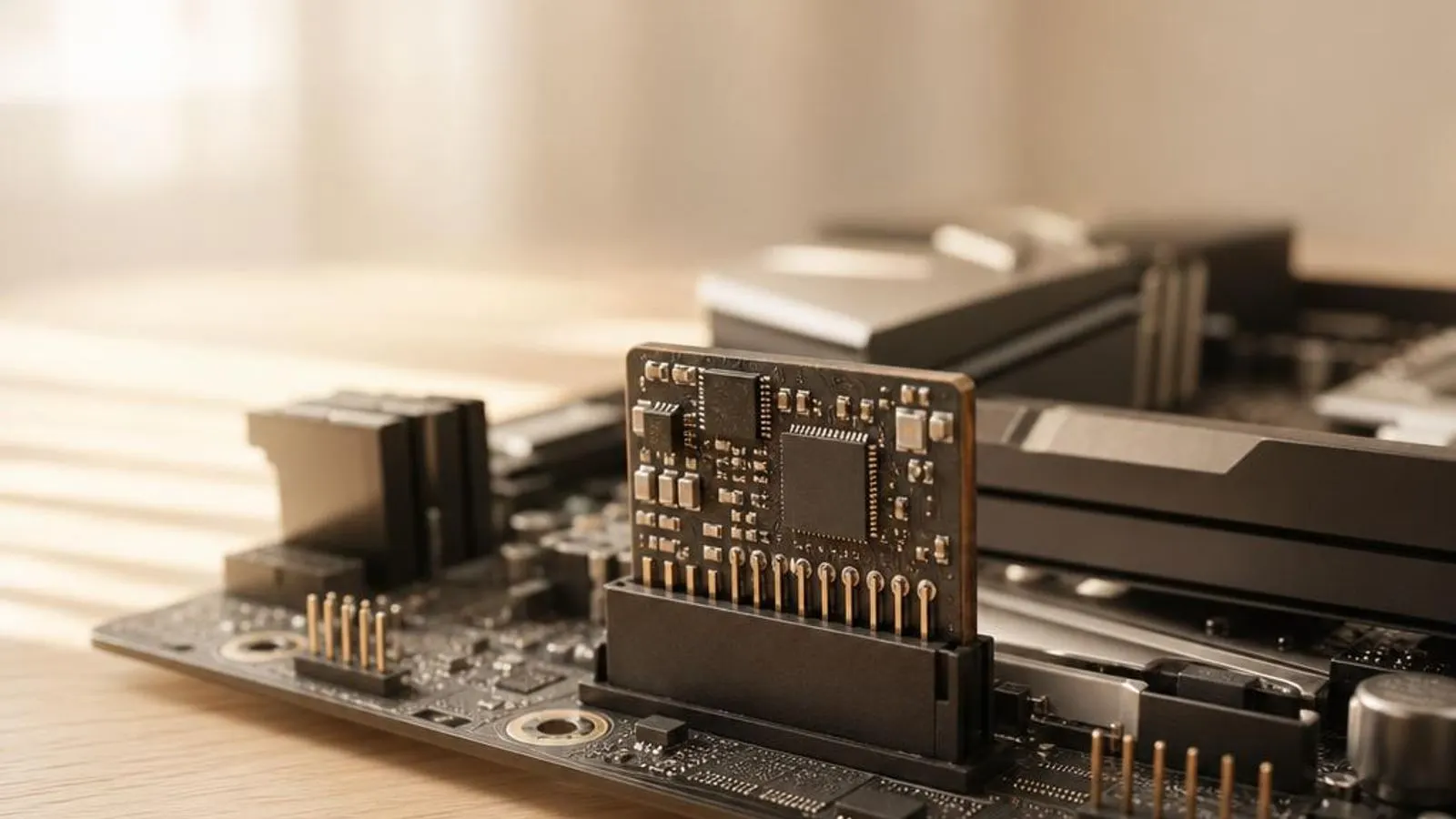
discrete TPM module seated on its board header, three-quarter view shown with

The TPM driver connects Windows to the Trusted Platform Module, letting BitLocker seal keys to Platform Configuration Registers and satisfying the Windows 11 TPM 2.0 requirement.

Driver Information

Hardware Familysystem storage
Categorytpm
OSwin11, win10

In Short

  • The TPM driver (tpm.sys) links Windows to a Trusted Platform Module, whether a discrete chip (dTPM), Intel Platform Trust Technology (PTT), or AMD firmware TPM (fTPM). Through it, the OS measures boot components into Platform Configuration Registers, seals BitLocker keys to those measurements, and answers attestation requests. It is why Windows 11 requires TPM 2.0. Most faults trace not to the driver file but to a cleared TPM, a changed PCR value, or an fTPM implementation stuttering under load.

What this driver does

A Trusted Platform Module is a small, isolated cryptographic processor with its own protected storage. It performs a fixed menu of security operations: generating and storing keys that never leave the chip, hashing boot measurements, and signing attestation statements that prove what code the machine booted. The TPM driver, tpm.sys in Windows, is the transport that carries commands and responses between the OS and that processor over the TPM's command interface. The module comes in three physical forms, and the driver abstracts all of them. A discrete TPM (dTPM) is a dedicated chip soldered to the board or on a header. Intel PTT and AMD fTPM are firmware TPMs, running the same TPM 2.0 command set inside a protected mode of the CPU rather than in separate silicon. To Windows they look alike, because the driver presents one standard interface regardless of the underlying implementation. The module's most-used feature is measured boot. As each stage of the boot chain runs, its hash is extended into a Platform Configuration Register, a PCR, producing a chain of values that uniquely reflects the code path taken. BitLocker seals its volume key to a chosen set of PCRs, so the key is released only when the machine boots the exact configuration it was sealed against, which is what ties disk encryption to boot integrity. The TPM also anchors identity and attestation. It holds an Endorsement Key burned in at manufacture, derives an attestation identity key, and can sign a quote of its PCR state for a remote verifier. Windows uses these for device health attestation and for anti-cheat and enterprise scenarios that demand proof the machine is in a known-good state, all mediated through the same driver.

Cutaway view of tpm driver with major components labelled

Why updating matters

The tpm.sys driver itself is an in-box Windows component and rarely needs a manual refresh. What genuinely matters is the firmware behind a firmware TPM, and updating that resolves the problems people actually hit. Early AMD fTPM implementations were notorious for periodic stutter, brief system pauses caused by the fTPM stalling the bus while it accessed SPI flash, and the fix arrived as an AGESA BIOS update rather than any Windows driver change. Firmware revisions also repair attestation and PCR behaviour. A buggy fTPM can compute a PCR value inconsistently across boots, which breaks the BitLocker seal and forces a recovery-key prompt every startup even though nothing about the disk changed. Updated firmware makes the measurement deterministic again, restoring the seal. Compatibility with newer security features depends on current firmware and OS servicing. TPM 2.0 command extensions, Windows device health attestation, and anti-cheat systems that require TPM-backed attestation all assume a module that behaves to spec; older firmware can fail those checks and block a game from launching or a device from reporting healthy. Because the driver is in-box, servicing comes through Windows Update, while the firmware behind an fTPM comes from your board or laptop maker's support page as part of a BIOS update for your exact model. Treat a TPM problem first as a firmware and configuration question, and reserve driver reinstalls for the rare case where tpm.sys itself is at fault.

TPM driver connected wirelessly and physically to typical peripherals in its ecosystem

Signs a driver may be failing

  • BitLocker demands its 48-digit recovery key on every boot even though the disk and hardware are unchanged
  • AMD fTPM causes brief, repeating stutters or audio dropouts during gaming or heavy I/O
  • Windows 11 setup reports the PC is unsupported because no TPM 2.0 is detected
  • The security processor shows a yellow triangle or 'device cannot start' in Device Manager
  • An anti-cheat system refuses to launch a game, citing a missing or non-compliant TPM 2.0
  • tpm.msc reports the TPM is not ready, or shows a 1.2 module where 2.0 is expected

How it fits into the OS stack

Drivers operate in the background, serving as translators. Here is where the TPM driver sits between your apps and the hardware.

Diagram showing how a tpm driver driver sits between the application layer and the hardware

Distribution comparison

Vendor Comparison
ProviderFeatures & Stability
Discrete TPM chip (Infineon, Nuvoton, STMicroelectronics)A dedicated TPM 2.0 chip provides the strongest physical isolation and consistent PCR behaviour, and it is unaffected by CPU firmware quirks. It requires a board header or soldered module, and its firmware updates arrive through the board maker rather than the CPU vendor, making it the choice where isolation matters most.
Intel PTT (firmware TPM)Platform Trust Technology runs the TPM 2.0 command set inside the Intel Management Engine, needing no extra chip and enabled from UEFI. It is reliable on current firmware and free, but because it lives in ME firmware, its fixes and errata ride along with chipset and BIOS updates for the board.
AMD fTPM (firmware TPM)AMD's firmware TPM runs in a secure processor within the CPU and is enabled in UEFI. It satisfies Windows 11 at no cost, but early AGESA versions caused the well-known fTPM stutter; a current BIOS resolves it, so keeping the board firmware up to date is essential on AMD platforms.

Before you start

1Open Device Manager by right-clicking the Start button.
2Expand the relevant device category for your hardware.
3Right-click the specific component to open Properties.
4Check the current driver version in the Driver tab.
"Only install drivers from your operating system's update tool or the manufacturer's official support page."

Where this driver comes from

Drivers for TPM driver typically reach your PC through one of three routes: shipped natively with the Windows operating system, delivered dynamically through system updates, or published directly by the hardware manufacturer for your specific model.

To ensure system stability, always allow your OS to handle baseline generic drivers. If you are experiencing performance issues or require advanced control panels, identify the exact model of your hardware and consult the device manufacturer's dedicated support resources.

Fixing installation problems

1

Check TPM state in the console

Run tpm.msc from the Start menu and read the Status and TPM Manufacturer Information. Confirm it reports 'The TPM is ready for use' and specification version 2.0; if it shows 1.2 or 'not ready', the issue is configuration or firmware, not tpm.sys.

2

Enable the TPM in UEFI

If no TPM appears, enter UEFI and enable the security processor: Intel PTT under PTT/Trusted Computing, or AMD fTPM under the security or AMD CBS menu. Save and reboot, then re-check tpm.msc; the module should now enumerate as 2.0.

3

Fix AMD fTPM stutter with firmware

If you notice periodic stutters on an AMD system, update the board BIOS to a version whose notes cite the fTPM/AGESA fix. This is a firmware change, not a driver reinstall, and it is the only dependable fix for stutter caused by the fTPM stalling the bus.

4

Stop the recovery-key loop

If BitLocker prompts every boot, enter the recovery key once, then in Windows suspend and resume BitLocker so it re-seals to the current PCR values. If a firmware change altered the measured boot path, this realigns the seal and stops the loop.

5

Clear the TPM as a last resort

Only after backing up recovery keys, use tpm.msc to Clear the TPM (or Security Processor troubleshooting in Windows Security). This wipes stored keys and re-provisions the module cleanly; expect to re-enrol BitLocker and any TPM-bound credentials afterward.

How to uninstall or rollback

1Click the Driver tab in the properties window.
2Select "Roll Back Driver" to revert to the previous version.
3If greyed out, use "Uninstall Device" instead.
1

Step 1

Ensure your BitLocker recovery key is saved before reverting any TPM or firmware change
2

Step 2

Suspend BitLocker so a returning firmware measurement does not lock the volume
3

Step 3

If a BIOS update introduced the problem, use the vendor's tool to flash the earlier version for your exact model
4

Step 4

Re-enter UEFI and restore the previous TPM configuration (PTT or fTPM enabled as before)
5

Step 5

Resume BitLocker so it re-seals to the restored PCR state, then confirm tpm.msc reports the TPM ready

Safety Warning

Never clear the TPM or change its UEFI setting without first saving your BitLocker recovery key; clearing wipes the sealed volume key, and without the recovery key an encrypted drive becomes permanently unreadable.

Common error codes

Discrete versus firmware TPMs and the single driver

A TPM can be physical or virtual. A discrete TPM is a dedicated chip, often from Infineon, Nuvoton, or STMicroelectronics, connected over a low-pin-count or SPI interface. A firmware TPM runs the identical TPM 2.0 command set inside a protected execution mode of the CPU: Intel calls its version Platform Trust Technology, AMD calls its version fTPM. There is no separate chip in the firmware case; the security is enforced by the processor. Because all three speak the same command set, Windows loads one in-box driver and presents one interface to software above. That abstraction is convenient but has a consequence worth remembering: since fTPM lives in CPU firmware, its bugs and fixes belong to the board's BIOS, not to the Windows driver, which is why so many TPM problems are solved by flashing firmware rather than reinstalling anything in Device Manager.

Measured boot, PCRs, and the BitLocker seal

Measured boot is the mechanism that ties security to what the machine actually ran. As each boot component executes, its hash is extended into a Platform Configuration Register; extending means the new hash is combined with the register's current value, so a PCR reflects an ordered chain of everything measured into it. The set of PCR values is a fingerprint of the boot path. BitLocker uses this by sealing its volume key to a chosen set of PCRs. On a normal boot the PCRs match the sealed values and the TPM releases the key silently. Change the boot path, by toggling Secure Boot, updating firmware, or moving the disk, and the PCRs differ, so the TPM refuses to unseal and BitLocker asks for the recovery key. Understanding this makes the recovery-key prompt legible rather than mysterious: it is the seal doing its job when measurements move.

The AMD fTPM stutter story

One of the most reported TPM issues was periodic stutter on AMD systems after enabling fTPM for Windows 11. The cause was not the Windows driver but the fTPM implementation itself: to persist state, the firmware TPM accessed the board's SPI flash, and on affected AGESA versions those accesses briefly monopolised the bus, stalling the system for a fraction of a second at intervals. The result was micro-stutter in games and occasional audio dropouts. The fix was a firmware change. AMD revised the fTPM's flash handling in newer AGESA code, and board vendors shipped it inside BIOS updates. This episode is the clearest illustration of why TPM troubleshooting starts with firmware: no driver reinstall, TPM clear, or Windows setting could remove a stall that originated in CPU firmware, and only a BIOS update for the specific board resolved it.

Attestation, endorsement keys, and identity

Beyond sealing, the TPM proves things about the machine. Each module carries an Endorsement Key established at manufacture, a permanent identity that never leaves the chip. From it the TPM derives attestation identity keys used to sign a quote of the current PCR state, letting a remote party verify what the machine booted without trusting the machine's own claims. Windows builds device health attestation on this, and enterprise access policies and some consumer anti-cheat systems consume it to gate access on a healthy, known-good boot. When attestation fails, the visible sign is often distant from the cause: a game refusing to launch, or a corporate resource declining a device. Because the whole scheme depends on PCRs computed consistently and a spec-compliant module, stale firmware that mismeasures or an fTPM that behaves erratically can break attestation while everything else appears to work.

Where this driver comes from

The TPM stack reaches your PC by three routes, and it splits unusually cleanly across them. The first route is shipped with the operating system: tpm.sys is an in-box Windows driver, present from installation, so the OS can talk to any compliant TPM 2.0 module the moment it is enabled in firmware, with no separate package to add. The second route is delivered through system updates: Windows Update services tpm.sys and the surrounding security components, and it is also where BitLocker, measured boot, and attestation logic receive fixes. Keeping Windows current is how you maintain the driver side of the TPM. The third route is published by the hardware maker for a specific model, and for TPMs this route governs the firmware, which is where most real bugs live. Intel PTT errata and AMD fTPM fixes, including the stutter and PCR-consistency repairs, ship inside BIOS updates on your board or laptop maker's support page for the exact model, described here in words rather than links. So the correct mental model is: driver from Windows, firmware from the vendor, and configuration from the UEFI menu.

Reading TPM error codes and recovering safely

In Device Manager the security processor lives under Security devices, and it can report standard codes. Code 10 ('This device cannot start') on the TPM usually means the module is disabled in UEFI or was left unprovisioned; enabling PTT or fTPM and letting Windows prepare the TPM clears it. Code 31 can appear when the security-processor stack fails to load, and re-running the Prepare/Clear cycle in tpm.msc after saving keys typically resolves it. The golden rule of TPM recovery is that keys are unforgiving. Clearing the module or changing a UEFI security setting will move or wipe the sealed BitLocker key, and without the 48-digit recovery key an encrypted volume is lost for good. So the safe sequence is always the same: save the recovery key, suspend BitLocker, make the change, then resume BitLocker so it re-seals to the new PCR state. Follow that order and even a full TPM clear is routine rather than catastrophic.

Frequently asked questions

Reviewer:
Last Reviewed:

Related Drivers