What this driver does
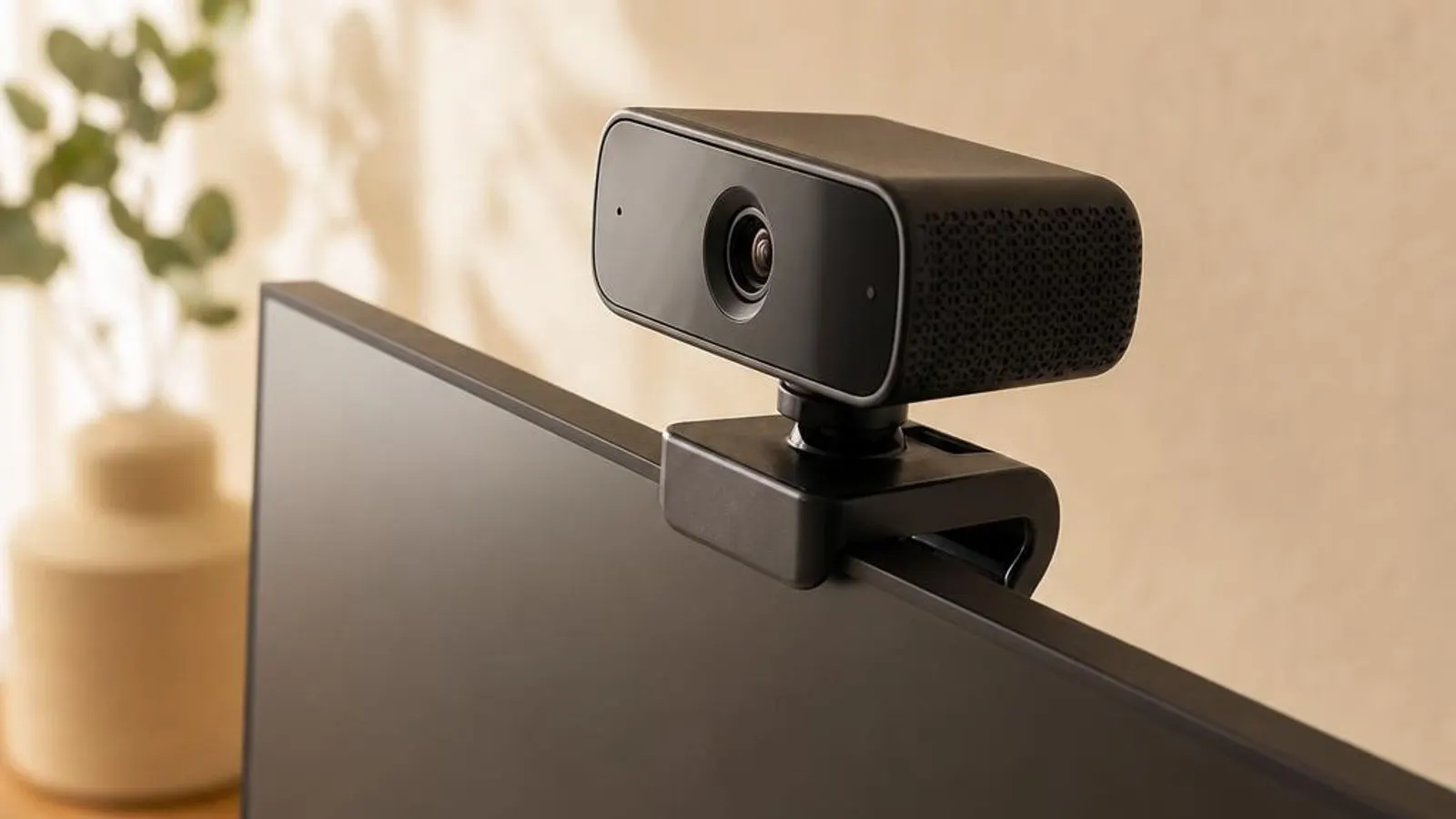
A webcam driver operates a camera built around an image sensor, a lens, and an image signal processor, or ISP. The sensor captures raw light as a grid of pixel values, and the ISP transforms that raw data into a clean, viewable image by applying exposure control, white balance, noise reduction, and colour correction. The driver programmes the ISP and delivers the finished frames to Windows and to whatever conferencing or capture application has opened the camera. Most webcams, whether an integrated laptop module or an external USB camera, conform to the USB Video Class, known as UVC. UVC is a standard that lets Windows drive a compliant camera with its inbox driver, without a vendor package, which is why a new webcam usually produces a picture the moment it is plugged in. The driver negotiates resolution, frame rate, and pixel format with the camera and exposes the supported combinations to applications. Beyond delivering frames, the driver exposes the camera's adjustable controls. Brightness, contrast, exposure, focus, and often pan, tilt, and zoom on higher-end models are all parameters the driver relays between the application and the ISP. A conferencing app that offers a camera-settings panel is reaching those controls through the driver's UVC property interface rather than talking to the sensor directly. The driver also sits at the centre of Windows camera privacy. Windows gates camera access behind a system-wide privacy setting and per-application permissions, and the driver participates in enforcing that a blocked app receives no frames. Many laptops add a hardware privacy shutter or an electrical kill switch, and when either is engaged the driver correctly reports a camera that is present but delivering only a black image.
Why updating matters
Webcam trouble is disproportionately about privacy settings and application permissions rather than the driver itself, but when the driver is genuinely at fault an update is the cure. Camera vendors fix ISP bugs that cause washed-out exposure or a green tint, correct frame-rate negotiation that stutters video, and repair the enumeration faults that make a camera vanish after a Windows upgrade. A current driver clears the class of problems that live in the imaging pipeline. Windows feature updates change the camera frame server and the USB stack the webcam depends on, and an old driver can fall out of step, producing a device that enumerates but delivers no image. This is especially common after a major Windows upgrade, where refreshing the camera driver realigns it with the new frame-server model and restores the picture to every application at once. Security and platform features also advance through updates. Support for the Windows secure camera path, for Windows Hello facial recognition on infrared modules, and for newer effects like background blur and eye contact can depend on a driver revision that understands the platform's current camera framework. An outdated driver may leave those capabilities greyed out even on capable hardware. The measured approach is to rule out privacy settings and app permissions first, then update the camera driver when the fault is a genuine imaging or enumeration problem, verify the picture across your usual apps, and roll back if a new build regresses. Certified UVC drivers come through Windows Update, and any model-specific package lives on your PC or camera maker's support page for your exact model. This webcam reference hosts no camera driver files and links to no vendor pages.
Signs a driver may be failing
- The camera preview is a solid black image even though the app reports the webcam as connected and in use
- Windows shows the camera with a yellow triangle and a Code 10 start failure after a feature update
- A second application cannot open the camera because it is already held exclusively by another program
- The image is washed out, too dark, or has a green tint because the ISP exposure and white balance are mis-set
- The webcam is missing from the app's device list until the UVC driver is reinstalled or re-enumerated
- Windows Hello facial sign-in fails because the infrared camera stream is not reaching the secure recognition path
How it fits into the OS stack
Drivers operate in the background, serving as translators. Here is where the Webcam driver sits between your apps and the hardware.
Distribution comparison
Before you start
"Only install drivers from your operating system's update tool or the manufacturer's official support page."
Where this driver comes from
Drivers for Webcam driver typically reach your PC through one of three routes: shipped natively with the Windows operating system, delivered dynamically through system updates, or published directly by the hardware manufacturer for your specific model.
To ensure system stability, always allow your OS to handle baseline generic drivers. If you are experiencing performance issues or require advanced control panels, identify the exact model of your hardware and consult the device manufacturer's dedicated support resources.
Fixing installation problems
Verify camera privacy and app permissions
Open Settings, Privacy and security, Camera, and confirm camera access is on for the system and for the specific app. A blocked toggle here produces a black image or a missing camera that looks exactly like a driver fault, so this check comes first.
Rule out a physical shutter or kill switch
Many laptops have a sliding privacy shutter over the lens or a function-key camera kill switch. A closed shutter or an engaged switch makes the driver correctly report a present camera delivering a black frame, so check the hardware before touching the software.
Reinstall the UVC driver
In Device Manager, under Cameras or Imaging devices, right-click the webcam, choose Uninstall device, and reboot. Windows reloads the inbox UVC driver and re-enumerates the camera, which clears a corrupted install and restores a missing device.
Release an exclusive hold on the camera
If an app reports the camera in use, close every other program that could hold it, including background conferencing apps in the system tray. Only one application can own a UVC stream at a time, so a stray holder blocks all others until it releases.
Reset ISP controls for a bad image
For a washed-out or tinted picture, open the app's or vendor's camera settings and reset brightness, exposure, and white balance to automatic. This lets the ISP recompute the image rather than holding the manual values that skewed the exposure or colour.
How to uninstall or rollback
Step 2
Step 3
Step 4
Step 5
Safety Warning
The UVC standard and inbox driver
Almost every modern webcam, integrated or external, conforms to the USB Video Class, or UVC. UVC defines a standard way for a camera to describe its resolutions, frame rates, and pixel formats and for the host to request streams, so Windows can drive any compliant camera with its built-in driver. This is why a new webcam typically shows a picture the instant it is connected, with no vendor software installed at all. The inbox UVC driver negotiates a stream format both ends support and exposes the camera's standard controls, brightness, contrast, exposure, and focus, through the UVC property interface. Applications reach those controls indirectly, so the camera-settings panel in a conferencing app is manipulating the driver's UVC properties rather than the sensor directly. For most video calling this standard path is entirely sufficient. What the inbox driver cannot provide is anything outside the standard: a vendor's proprietary effects, ISP tuning beyond the basic controls, firmware updates, or the secure infrared path Windows Hello needs. Those require a model-specific package. The strength of UVC is that even when such a package fails, uninstalling it drops the camera back to the reliable inbox driver, so you rarely lose the picture entirely.
Inside the image signal processor
The raw output of a camera sensor is not a viewable picture; it is a grid of pixel values that still needs substantial processing. The image signal processor, or ISP, performs that work, and the driver configures it. Demosaicing reconstructs full colour from the sensor's colour-filter pattern, automatic exposure sets the sensor's gain and shutter to the scene brightness, white balance neutralises colour casts, and noise reduction cleans the result in low light. Because the ISP is doing continuous decisions, its settings are the usual source of a bad image. A picture that is too dark, blown out, or tinted green typically reflects the exposure or white-balance control being pushed to a manual value that no longer suits the scene. Returning those controls to automatic lets the ISP recompute from the current light, which fixes most appearance complaints without any driver change. When the fault is not a setting but the pipeline itself, the driver is implicated. A corrupted driver can mis-programme the ISP so that colour or exposure comes out consistently wrong regardless of the controls, and here a clean reinstall restores correct processing. Distinguishing a settings problem from a pipeline problem, by first resetting to automatic, is the quickest route to the right fix.
Camera privacy, permissions, and the frame server
Windows treats the camera as a privacy-sensitive device and gates it at several levels. A system-wide camera access setting sits above per-application permissions, and both must allow access before an app receives any frames. The driver participates in enforcing this, correctly delivering a black image to a blocked application, which is exactly why so many black-screen complaints turn out to be a permission toggle rather than a driver fault. Modern Windows routes camera access through a frame server, a system component that lets the operating system apply effects and, in principle, share the camera more flexibly. General application access to a UVC stream remains exclusive, so one app at a time, but the frame server is why the camera privacy model and system effects behave consistently across programs. A stalled frame server can make a camera appear broken to every app at once. Hardware adds a further layer that no software can override. A sliding privacy shutter physically blocks the lens, and an electrical kill switch cuts the camera's power, both producing a present-but-black camera by design. Because uninstalling a vendor driver can reset the Windows privacy toggles, it is good practice to recheck both the software permissions and the hardware shutter after any driver change.
Diagnosing black images and start failures
Webcam diagnosis follows a deliberate order because the most common causes are the least technical. Start with the physical: is a privacy shutter closed or a kill switch engaged? Then the permissions: is camera access enabled system-wide and for the specific app? A large majority of black-image and missing-camera reports are resolved at these two steps, before any thought of the driver. When the hardware is open and permissions are granted but the image is still black or the camera is absent, the fault moves into the driver and enumeration layer. A Code 10 in Device Manager means the driver failed to start the camera, typically after a Windows update shifted the frame server or USB stack; a clean reinstall that re-enumerates the device is the standard cure. A device missing from an app but present in Device Manager points at an application-level list that a restart refreshes. The in-use error is its own case. Because a UVC stream opens exclusively, a second application cannot access a camera another program already holds, and the holder is often a background conferencing tool. Closing every program that could own the camera frees the stream. Working through physical, permission, driver, and exclusivity checks in that sequence isolates the real cause without unnecessary reinstalls.
Where this driver comes from
A webcam driver reaches your PC by three routes, and because UVC is a standard, the first route already covers most cameras. That first route is the driver Windows ships with: the inbox UVC driver operates any compliant camera without installation, negotiating resolution and frame rate and exposing the standard exposure and focus controls, so a webcam usually works immediately on a fresh Windows install. The second route is Windows Update. Once online, Windows matches the camera's hardware identifiers and can offer a certified vendor or OEM camera driver, sometimes including the component that enables Windows Hello facial recognition and system effects. For the majority of laptops and USB cameras this automatic path delivers a complete, full-quality picture with no manual effort. The third route is the hardware maker publishing a camera driver for one specific webcam and PC model. Your laptop or camera manufacturer validates a package with its ISP tuning, effects, firmware, and secure infrared path against one exact configuration and posts it on that model's support page; this is where advanced framing, colour tuning, and Windows Hello secure-path support come from. This site describes all three routes in words only, hosts no driver files, and links to no vendor download pages, so identify your exact model and obtain any manual package from the maker's own support page.
